Transfering your server to another location
You can't change a server's location yourself in the Fragnet dashboard. Our support team moves it for you.
Request a location change
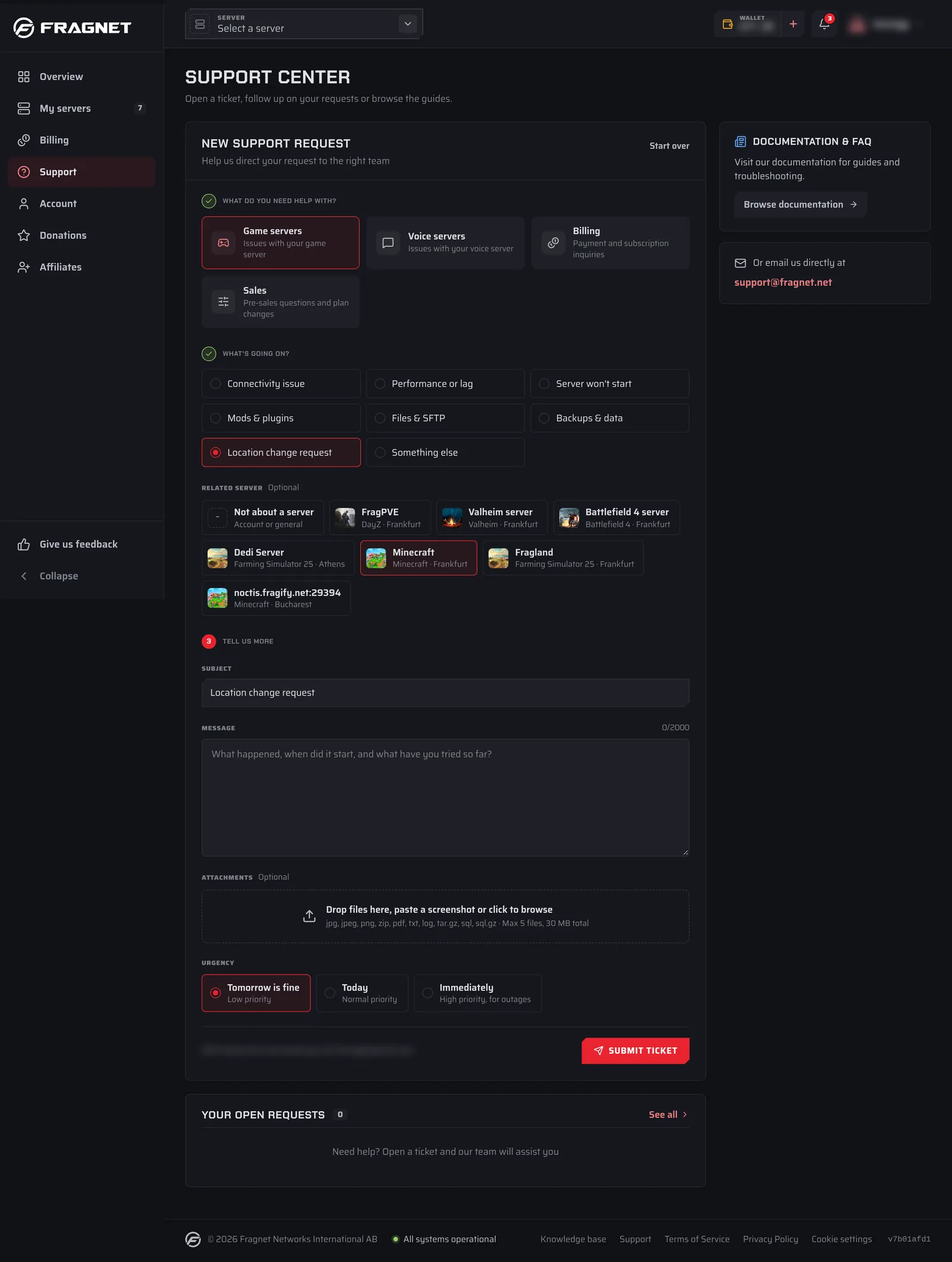
- Open the Fragnet dashboard and select Support in the sidebar.
- Under What do you need help with?, choose Game servers.
- Under What's going on?, choose Location change request, then select the server under Related server.
- In Message, tell us which location you'd like to move to and when suits you. Set the Urgency and select Submit ticket.
You can see your server's current location in the Location row of the Server Details card on the Overview tab. It updates once the move is done.
What to expect when your server is moved
IP address: Your server's IP address changes when it moves to another location, because each of our machines has its own addresses. Players who join by IP need the new address, which you'll find under Address in the Server Details card. If your players join with a free subdomain instead, they can keep using the same name. Mention it in your ticket so we can check that it points to the new address after the move.
Files: Your server's files are moved with it and stay as they are. We still recommend creating a backup before the move.
Downtime: Your server is offline while it's being moved. How long that takes depends mostly on the size of your server's files: large servers take longer. Our team keeps you updated in the ticket.