Getting Started
The Fragnet dashboard is where you manage your servers, billing, support tickets and account. It replaces both the old game control panel and the separate billing area.
Sign in
- Go to fragnet.net/auth/login.
- Sign in in one of these ways:
- Enter your Email or username and Password, then select Log in.
- Select Steam, Discord or Google at the top to sign in with that account. You only see the providers that are available.
- Enter your email and select Email me a login link instead. The link works once and expires after 15 minutes.
- On your own device, you can tick Keep me logged in on this device for 90 days before you log in.
- If you've turned on two-factor authentication, enter the 6-digit code from your authenticator app and select Verify. See Two-factor authentication.
Your account has moved to the dashboard. Select Forgot password? on the login page, enter the same email address and select Send reset link. Open the link in the email to choose a new password. The link expires after 30 minutes.
If you've been invited to other people's accounts, you see Choose an account after you sign in. Pick the account you want to use now. You can switch later, see Team access.
Find your server
There are three ways to get to a server:
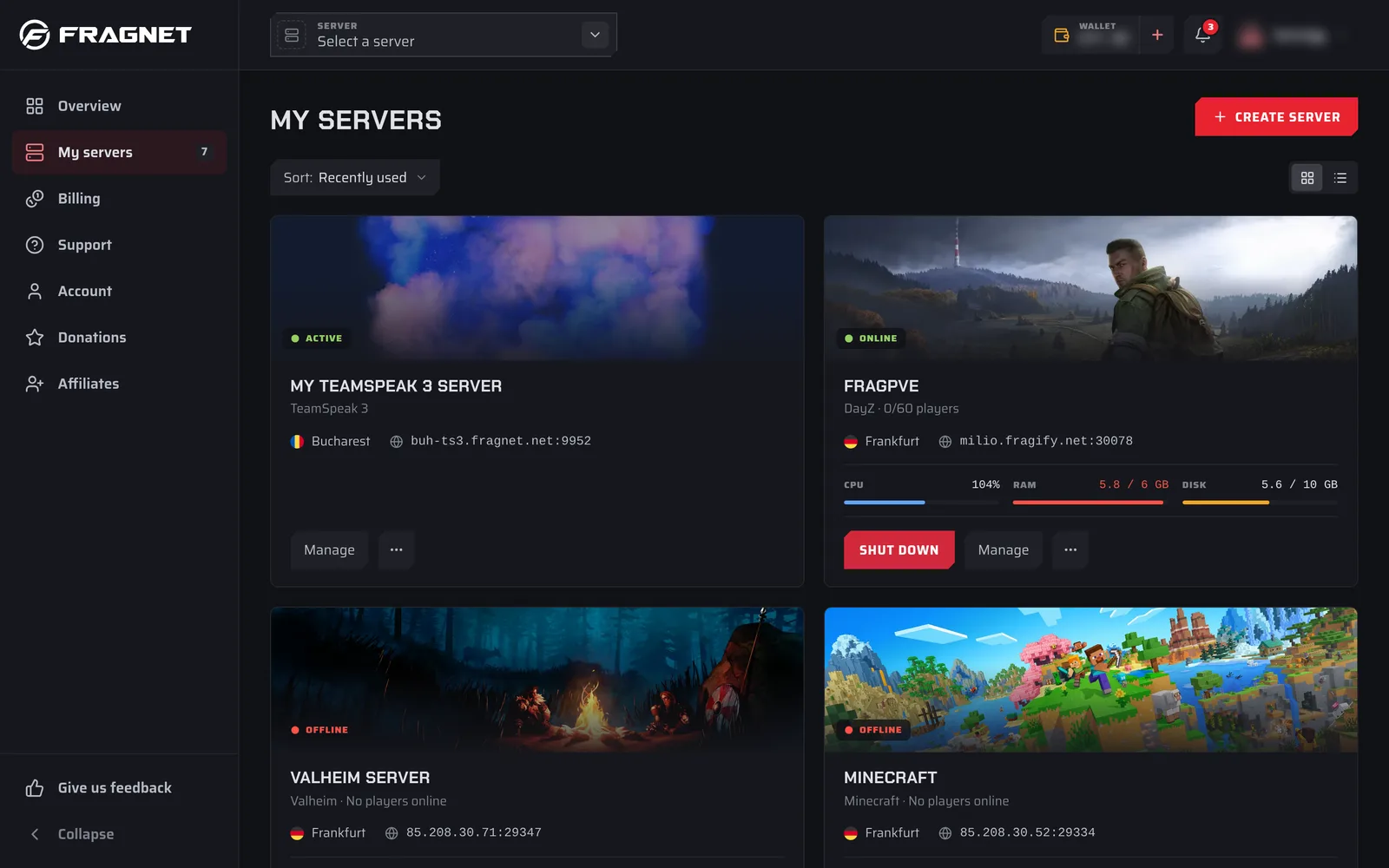
- My servers in the sidebar (Servers in the bottom bar on phones) lists all your servers. Use Sort: to order them by Recently used, Name, Status or Next renewal, and the buttons next to it to switch between grid and list view. Select a server to open it.
- The server picker in the top bar (Select a server) jumps straight to any server. View all servers at the bottom opens My servers.
- The Overview page, the first page after you sign in, shows Your servers as cards. Select Manage or Console on a card to open the server. Its Overview tab includes the console.
The server page
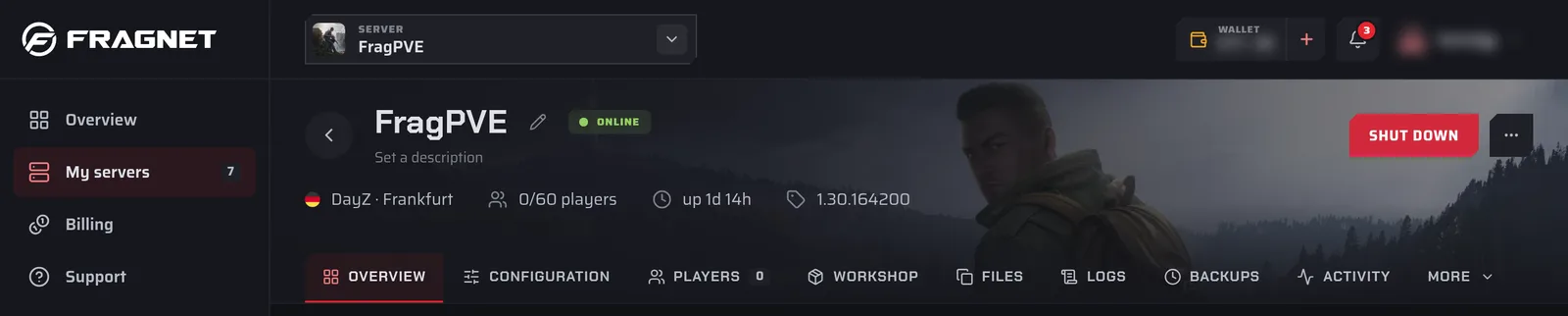
At the top of a server's page you see its name, status, the power button and the ⋯ More actions menu. Below that is a row of tabs. Tabs that don't fit on your screen are under More.
Which tabs you see depends on the game and on your role on the account. Only the Owner, Admin and Service manager roles get the tabs that change the server, such as Configuration, Files and Backups.
| Tab | What it's for |
|---|---|
| Overview | The server's address, location and plan, the live console, current usage and schedules. |
| Configuration | Game config files, startup settings, the dashboard name, subdomain, Java version, SFTP/FTP access and wiping the server. |
| Files | Browse, upload, edit, download and delete the server's files. |
| Backups | Create, restore, download and protect backups. |
| Activity | A log of everything that happened on the server, including crashes. |
| Billing | The plan, renewal, invoices and cancellation. |
| Version | The version the server runs. On Minecraft you can install other server software or versions here. |
| Players | Who is online and, on some games, player lists such as operators, whitelist and bans. On Path of Titans this tab is called Access. |
| Plugins, Mods, Workshop, Modpacks | Install and manage add-ons, on games that support them. |
| Game-specific tabs | For example Worlds, Wipes (Rust), Maps (CS2 and Battlefield), Demos (CS2), PRoCon (Battlefield), Steam (DayZ), Logs, Savegames and Map (Farming Simulator). |
In this section
- Basic Controls: power, console, server details and renaming
- Configuration: change game and server settings
- Files and SFTP: the Files tab and SFTP/FTP clients
- Backups
- Schedules
- Team access: invite people and choose their role
- Subdomains: a free address for your server
- Crash alerts and activity
- Two-factor authentication