How to access your server files using FTP
You can manage most of your server's files in the browser from the Files tab of the Fragnet dashboard. See Files for what you can do there.
An FTP or SFTP client is better for bigger jobs:
- uploading large files (uploads over 100 MB should go through FTP rather than the browser)
- uploading or downloading many files at once
- moving files and folders between folders, which the Files tab can't do
Some games limit which files you can access, at the request of their developers.
Find your connection details
- Open the Fragnet dashboard, go to My servers and select your server.
- Open the Files tab and find the FTP access card. The same details are under Configuration → General → File access. On Farming Simulator servers, they're in the File access card on the Overview tab.
- Choose FTP or SFTP at the top of the card. The port changes with your choice.
- Copy the Host, Username, Port and Password with the copy button next to each. To see the password, select the eye icon (Reveal).
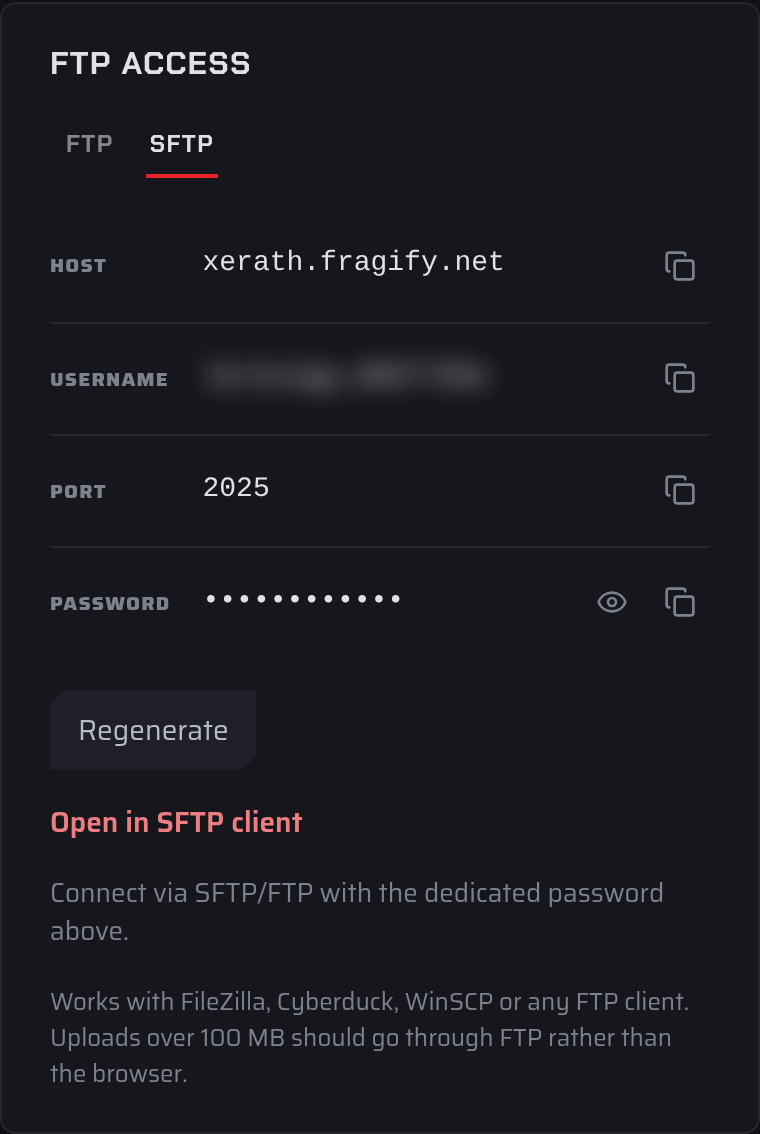
The password is a dedicated SFTP/FTP password for this server. It is not your Fragnet account password. Only the account owner and team members with the Admin or Service manager role can see it.
We recommend SFTP, which encrypts the connection, if your client supports it.
Change the password
Select Regenerate, then Regenerate password to confirm. The new password replaces the old one for everyone with access to the server, and connections that use the old password stop working.
Choose an FTP client
You can use any FTP or SFTP client you like. These are popular free options:
| Software | Windows | Mac | Linux |
|---|---|---|---|
| FileZilla | |||
| Cyberduck | |||
| WinSCP |
If your computer has an FTP client set up to open links, you can also select Open in FTP client or Open in SFTP client in the card. It fills in the host, port and username for you; you enter the password.
Connect with FileZilla
- Download and install FileZilla Client from filezilla-project.org.
- In the bar at the top of FileZilla, fill in:
- Host: the host from the dashboard. For SFTP, type
sftp://in front of the host. Don't add the port to the host. - Username: the username from the dashboard.
- Password: the SFTP/FTP password from the dashboard.
- Port: the port shown for the option you chose (FTP or SFTP).
- Host: the host from the dashboard. For SFTP, type
- Select Quickconnect.

When you're connected, your server's files appear on the right (Remote site) and your computer's files on the left (Local site).
Upload and download files
- To upload, drag files or folders from the left side to a folder on the right.
- To download, drag them from the right side to the left.
- You can also right-click a file or folder and select Upload or Download.
- To move a file on the server, drag it into another folder on the right side.
Most games only read their configuration files when they start. Restart your server after uploading or changing config files.
If you can't connect, check that you copied the port for the option you chose, and that you're using the SFTP/FTP password from the dashboard. If it still doesn't work, open a support ticket and choose Files & SFTP.