Troubleshooting InsaneLimits reset on restart
On rare occasions, if you are running the InsaneLimits plugin on your Procon Layer, its rules reset when the layer restarts. This happens if you have multiple InsaneLimits config files, especially if the Procon Layer or your Battlefield server was moved from one IP to another.
You fix it in the layer's files on the PRoCon tab in the Fragnet dashboard. You need your Battlefield server's IP and RCON port: find them on the Overview tab, in the Connection card (Game address and RCON port).
Stop the layer and open its files
Procon rewrites its configs when it stops, so stop the layer before you change anything.
- Open the Fragnet dashboard, go to My servers, select your Battlefield server and open the PRoCon tab. If it's not in the tab row, look under More.
- Select Stop and wait until the status is Offline.
- Below the cards, select Files. You see the layer's Plugins, Configs and Logs folders.
Check the limits file setting
-
Open
Configs/IP_Port/InsaneLimits.cfg, whereIP_Portis the folder named after your Battlefield server's IP and RCON port. -
Look for the following line:
procon.protected.plugins.setVariable "InsaneLimits" "limits_file"The line continues with a BASE64 encoded string.
-
Copy the text after
BASE64:and paste it on Base64decode to decode it.

When it's decoded, check whether the IP_PORT in the output (the IP of the Battlefield server and its RCON port) is wrong. If it's right, this guide doesn't apply.
Fix the limits file
-
Select Layer in the path at the top to go back, then open the Plugins folder and the
BF4folder (BF3for a Battlefield 3 server). You should see 2 InsaneLimits config files: one for the old IP and one for the new IP. The new file should be 0 KB. -
Open the old file, select all its text and copy it. Select the back arrow (Back to files).
-
Open the new file, paste the text and select Save.
-
On Base64decode, switch to the Encode tab. Enter the following line with your own Battlefield server IP and RCON port, and press ENCODE:
Plugins\BF4\InsaneLimits_IP_RCONPORT.confUse
BF3instead ofBF4for a Battlefield 3 server.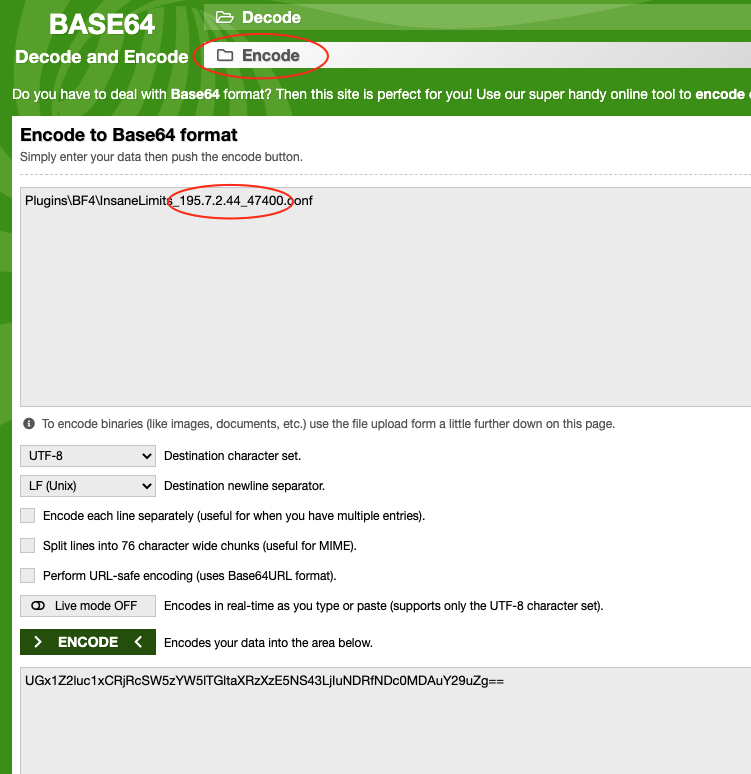
-
Go back to
Configs/IP_Port/InsaneLimits.cfg, replace the old BASE64 string with the one you just generated and select Save. -
Select Start at the top of the PRoCon tab.
The limits you set should no longer reset.