Files and SFTP
You can manage your server's files in two ways:
- The Files tab in the Fragnet dashboard, for quick jobs: uploading a few files, editing a config, renaming or deleting.
- An SFTP or FTP client on your computer, for large uploads, many files at once and moving files between folders.
The Files tab and the SFTP/FTP password are only available to the Owner, Admin and Service manager roles. See Team access.
The Files tab
Open the Fragnet dashboard, go to My servers and select your server. Then select the Files tab.
- The path at the top shows the folder you're in. Select a folder in the path to go back to it, or the first button to go to the root folder.
- Select a folder to open it. Select a file to open it in the editor.
- Type in Filter files to show only matching names in the current folder.
- Select the Name, Size or Modified column header to sort.
- The toolbar has New file, New folder and Upload.
- Next to the list, the FTP access card shows your SFTP/FTP login and the Disk usage card shows how much storage you use.
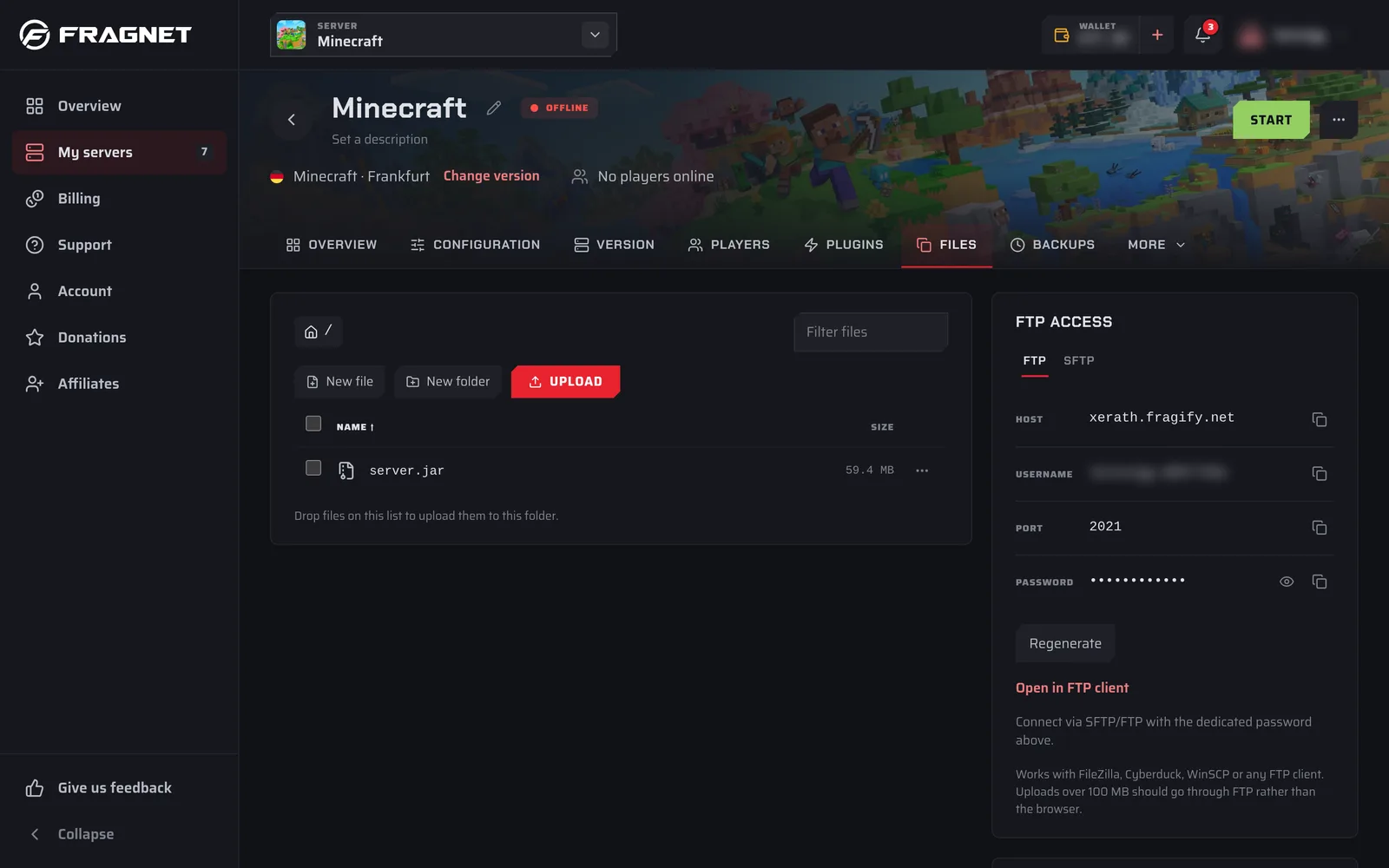
Upload files
- Open the folder you want to upload to.
- Select Upload and choose one or more files. You can also drag files from your computer onto the list. "Drop to upload here" shows where they will go.
- Progress shows in the Uploads list above the files. You can cancel an upload while it runs.
You can't upload a folder. Compress it into a .zip file on your computer, upload the .zip, then use Extract on it.
Uploads over 100 MB should go through SFTP or FTP rather than the browser. If an upload fails with "Use FTP instead", use an SFTP client as described below.
Create a file or folder
- Open the folder where you want the new item.
- Select New file or New folder.
- Enter a Name. Names can't contain slashes and can be up to 255 characters.
- Select Create. A new file opens in the editor straight away.
Edit a file
- Select the file's name, or open its ⋯ menu and select Edit.
- The editor opens next to the file list (below it on smaller screens).
- Make your changes. A dot next to the file name shows there are unsaved changes.
- Select Save file, or press Ctrl+S (Cmd+S on a Mac).
- You see "Saved at" and the time. Restart the server to apply config changes.
Revert throws away the changes you haven't saved, and Download saves the file to your computer. If you try to leave with unsaved changes, the dashboard asks whether to save them or Discard changes.
You can edit text files up to 1 MB. Binary files, such as .jar or .dll files, can't be opened in the editor. Download them, or use an SFTP client.
For game config files, the ⋯ menu also has Open in config editor. It opens the file on the Configuration tab, where you can change settings with labelled fields instead of raw text. See Configuration.
File and folder actions
Open the ⋯ menu at the end of a row for these actions:
| Action | What it does |
|---|---|
| Edit | Opens a text file in the editor. |
| Open in config editor | Opens a game config file on the Configuration tab. |
| Download | Downloads the file. To download a folder, Compress it first and download the archive. |
| Rename | Gives the file or folder a new name in the same folder. |
| Make a copy | Makes a copy of the file in the same folder. |
| Compress | Packs the file or folder into an archive in the same folder. |
| Extract | Unpacks an archive (.zip, .tar, .tgz, .gz, .bz2, .xz, .rar or .7z) into the folder it's in. |
| Delete | Deletes the file or folder, including everything inside a folder. You're asked to confirm. This can't be undone. |
Deleted files are gone for good unless you have a backup. Make a backup before you delete or replace important files such as worlds.
Select several items
- Tick the box at the start of each row, or the box in the header to select everything in the folder.
- A bar shows how many items are selected, with Compress, Delete and Clear.
- Compress packs the selected items into one archive (up to 100 items at a time). Delete deletes them all after you confirm. Clear unselects them.
Moving files between folders
You can't move files or folders to another folder in the dashboard. Rename only changes the name within the same folder.
To move files, either:
- Download and upload again: download the file, open the folder you want it in, upload it there, then delete the original. For a folder or many files, Compress them first, download the archive, upload it to the new folder, Extract it there, then delete the originals.
- Use an SFTP client: connect as described below and drag the files to the new folder. This is the easiest way for large or many files.
SFTP and FTP access
SFTP and FTP let you work with your server's files from a program on your computer. SFTP is encrypted, so we recommend it. Use FTP only if your client doesn't support SFTP.
Find your login details
The SFTP/FTP login is in these places:
- Files tab, in the FTP access card.
- Configuration tab > General > File access.
- On Farming Simulator servers, the File access card on the Overview tab.
The ⋯ More actions menu at the top of the server page also has Copy SFTP details, which copies the host, port and username (not the password).
In the login panel:
- Choose FTP or SFTP at the top. FTP is selected when the panel opens. The port changes with your choice.
- Copy the Host, Username and Port with the copy button next to each.
- Next to Password, select Reveal (the eye) to show it, or Copy password to copy it.
- Open in SFTP client (or Open in FTP client) opens the connection in the SFTP or FTP program installed on your computer, if it supports these links.
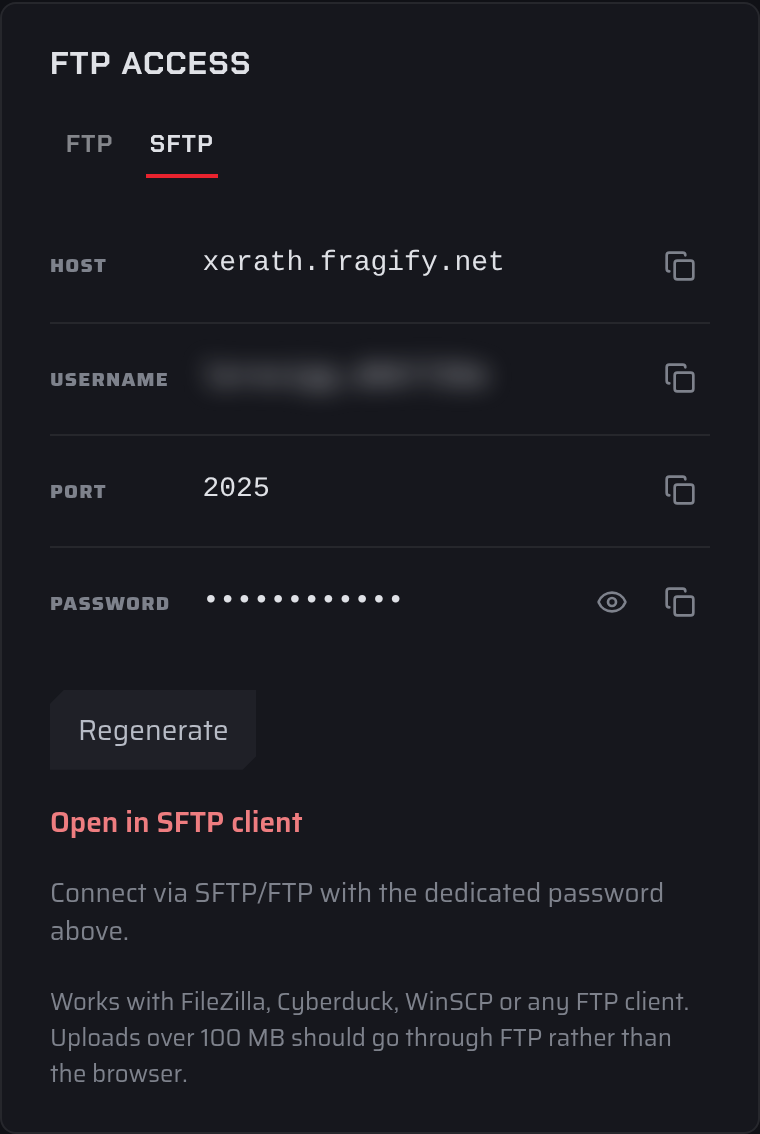
Each server has its own SFTP/FTP password. It isn't the password you use to sign in to the dashboard. Everyone on your team who can see the password uses the same one.
Change the SFTP/FTP password
- In the login panel, select Regenerate.
- Read the warning Regenerate SFTP/FTP password? The new password replaces the old one for everyone with access to this server, and existing connections using the old password stop working.
- Select Regenerate password.
- Update the saved password in your SFTP or FTP client.
Choose a client
| Software | Windows | Mac | Linux |
|---|---|---|---|
| Cyberduck | |||
| WinSCP | |||
| FileZilla |
Connect with FileZilla using SFTP
- In the dashboard, open the login panel and select SFTP.
- Open FileZilla and go to File > Site Manager, then select New site.
- Set Protocol to SFTP - SSH File Transfer Protocol.
- In Host, paste the Host from the dashboard. In Port, enter the Port shown under SFTP.
- Set Logon Type to Normal.
- In User, paste the Username. In Password, paste the password (use Copy password in the dashboard).
- Select Connect. The first time, FileZilla asks whether to trust the server's host key. Select OK.
Your server's files appear on the right. Drag files between your computer (left) and the server (right), or between folders on the server to move them.