Connecting to your server
This guide shows two ways to connect to your 7 Days To Die server: by its address, or through the in-game server browser.
Find your server's address
- Open the Fragnet dashboard, go to My servers and select your 7 Days To Die server.
- On the Overview tab, the Server Details card shows the Address. Select the copy button next to it.
The address has two parts, the host and the port, separated by a colon (host:port). You need both. See Server Details.
Connect with the address
-
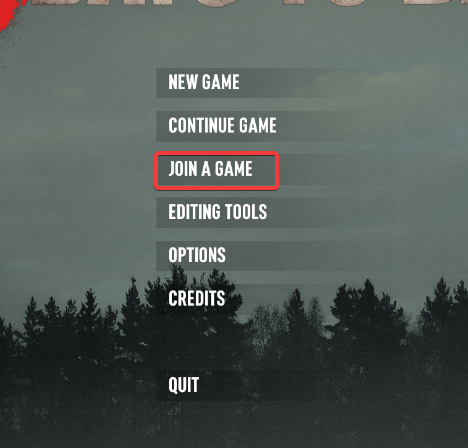
Launch the game and select Join a Game in the main menu.
-
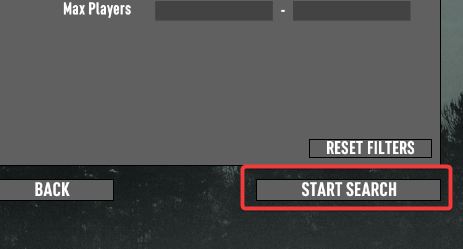
Select Start Search in the bottom-right corner.
-
Select Connect to IP... and enter the host in IP and the port in Port.

-
Select Connect. If the address and port are right, you join your server.
Find the server in the in-game browser
-
Launch the game and select Join a Game in the main menu.
-
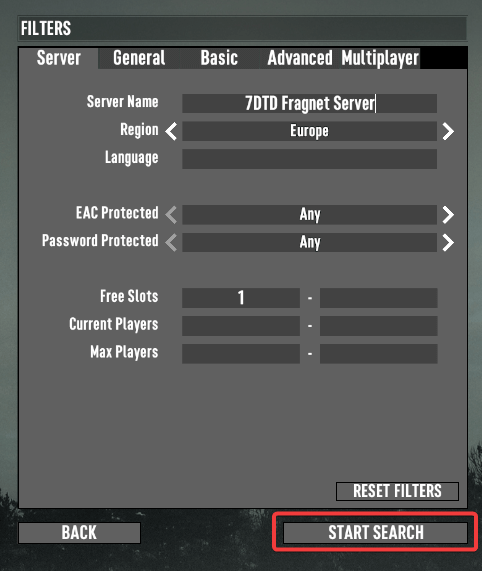
In the Server Name filter, enter your server's name, then select Start Search. The name is the Server Name startup setting. See Change your server's name.
-
Your server appears in the list. Double-click it to connect.
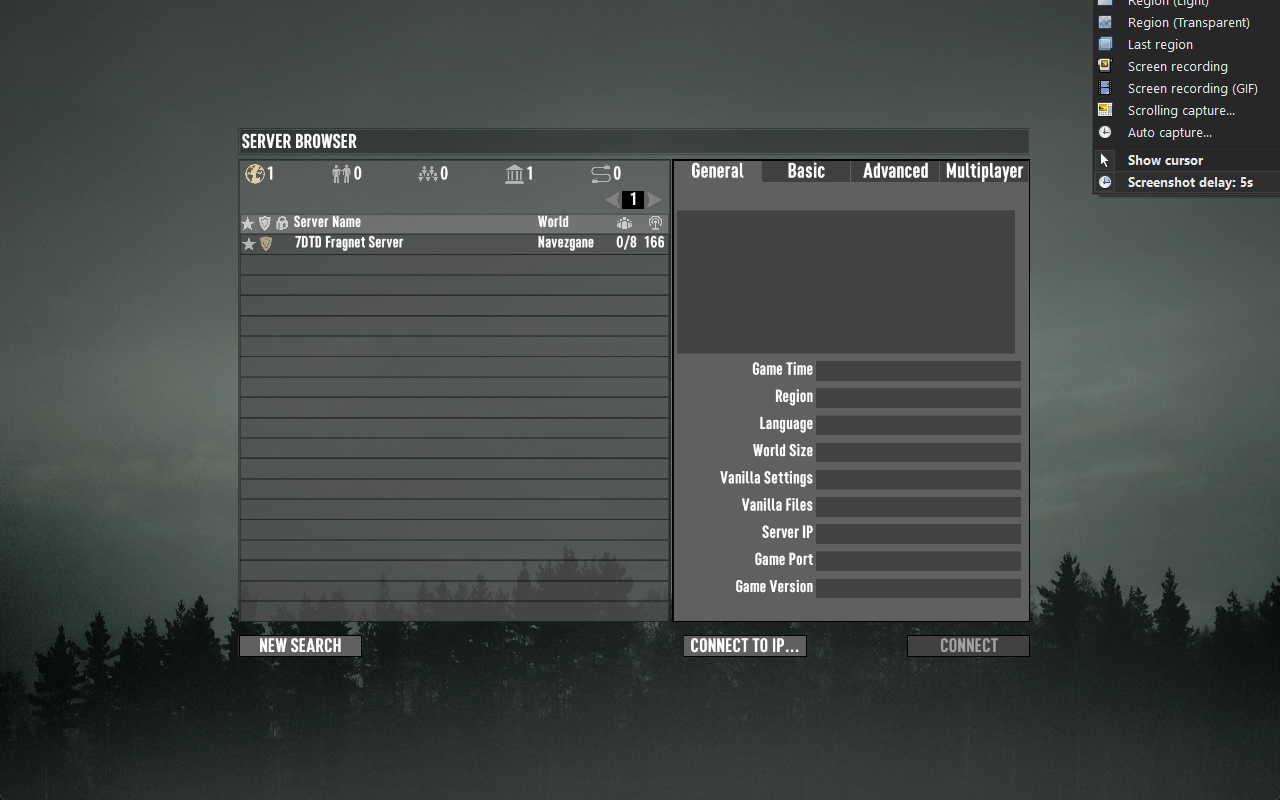
Check that the name you search for matches the Server Name startup setting, and reset other filters such as Region. You can always connect with the address instead.