Basic Controls
This page covers the everyday controls on a server's page: power, the console, the Server Details card, usage and renaming. To get there, open the Fragnet dashboard, go to My servers and select your server.
Power, the console and renaming are only available to the Owner, Admin and Service manager roles. Other roles can view the server but not change it. See Team access.
Power controls
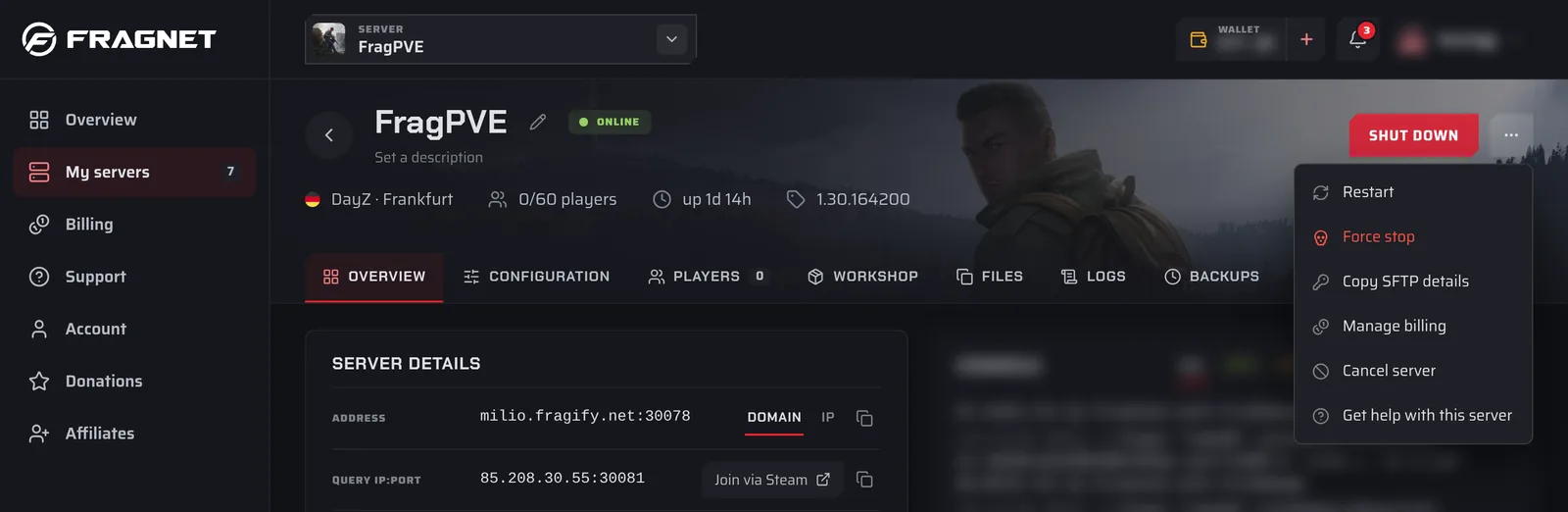
The power button sits at the top right of the server page. It changes with the server's state:
| Server state | Button |
|---|---|
| Offline | Green Start |
| Running | Red Shut down |
| Starting or stopping | Starting… or Stopping… (greyed out until the server gets there) |
Next to it, the ⋯ More actions menu has the other power actions:
- Restart: shuts the server down and starts it again. Shown while the server is running.
- Force stop: ends the server process immediately, without letting the game save.
- Shut down: only appears in this menu when the dashboard can't read the server's state.
Force stop
Use Force stop only when a normal shutdown doesn't work, for example when the server is stuck on Starting… or Stopping….
- Open ⋯ More actions and select Force stop.
- A warning appears under the header: "Force stop ends the server process immediately. Unsaved progress may be lost."
- Select Confirm force stop, or Keep running to cancel.
The ⋯ More actions menu also has Copy SFTP details, Manage billing, Cancel server and Get help with this server, depending on your role.
On Farming Simulator servers the buttons in the header control the game itself. See the Farming Simulator guides for details.
Console
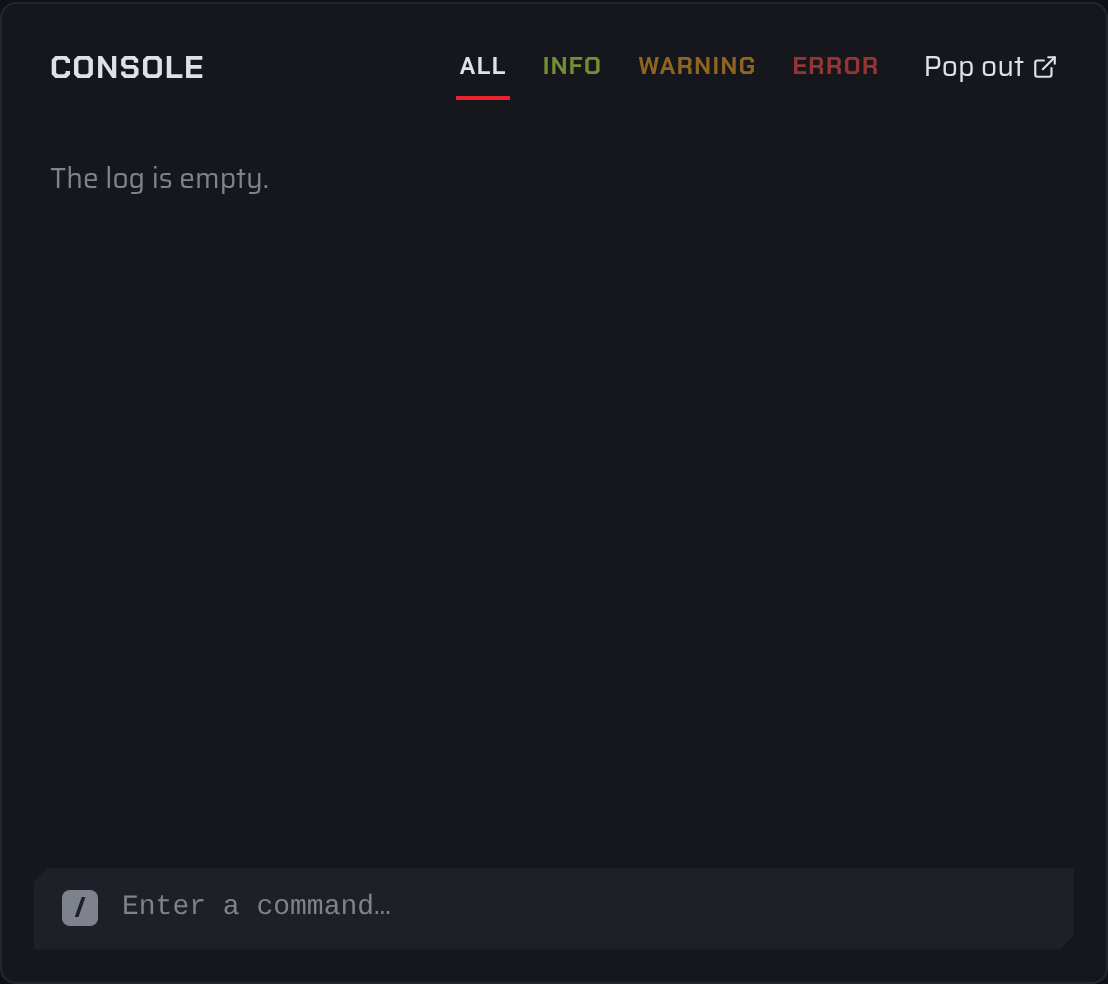
The Console card on the Overview tab shows your server's live log and lets you send commands.
- Filter the log: select All, Info, Warning or Error. The Error filter shows how many errors there are.
- Full view: select the Console title to open the console on its own page, titled Server log. It has Clear (empties the view) and Download (saves the lines as a
.logfile). Select Overview at the top to go back. - Pop out: opens the console in a separate browser window, so you can keep it open while you use other tabs.
- Scrolling: when you scroll up, new lines no longer push the view down. Select Jump to latest (or the "new lines" button) to go back to the bottom.
The console keeps the most recent 1,000 lines.
Send a command
- Click in the Enter a command… field at the bottom of the console.
- Type the command and press Enter. A command is one line of up to 1,000 characters.
- Use the ↑ and ↓ arrow keys to go through the last 30 commands you sent in that console.
If the server isn't running, you see "The server is offline. Start it to run commands." Start the server first.
Games without a full console
- Farming Simulator 22 and 25: there is no console in the dashboard.
- Valheim and Path of Titans: the console shows the log, but the game doesn't read commands typed there. Admins use commands in game.
- Battlefield 3: the console shows server events only. Run commands from PRoCon.
Server Details
The Server Details card on the Overview tab shows:
- Address: the address players connect to. Select the copy button next to it to copy it. When the server has both a domain and an IP address, use the Domain / IP switch (Address type) to choose which one you see and copy.
- Subdomain: your free Fragnet subdomain, if the server supports one. See Subdomains.
- Java version (Minecraft): the Java runtime the server starts with. Select Change to pick another one. It applies the next time the server starts.
- Location: the city your server runs in.
- Plan: the price and resources of your plan. Change plan opens the Billing tab.
DayZ servers also show a Query IP:Port row.
Current usage and metrics
The Current usage card on the Overview tab shows live CPU, RAM and Storage use, each compared with your plan's limit, with a small graph of the last 60 seconds.
Select View details to open Usage history:
- Pick a time range from the last hour up to the last 30 days.
- Switch the charts between Fit data and Plan limits.
- See charts for CPU, Memory, Storage, Network and Players.
- Select Export CSV to download the data.
Usage is only recorded while the server is running.
Rename the server
The dashboard name is how the server appears in your lists. Only you and your team see it. Players see the server name from your game settings, which you change on the Configuration tab.
- Select the pencil (Rename server) next to the server's name.
- Type the new name. Use 1 to 60 characters on one line.
- Select Save, or Cancel to keep the old name.
You can also change it under Configuration > General > Dashboard name.
Add a description
A description is a short note shown under the server's name, for example "Main survival server".
- Under the server's name, select Set a description. If the server already has one, select the pencil next to it (Edit description).
- Type up to 120 characters.
- Select Save.