Upload your world
-
You will need to navigate to your World folder. It is usually saved in the following directory:
C:\Users\YourPCUsername\AppData\Roaming\7 Days to Die\Saves\NameOfYourWorld
-
After finding the world you want to upload, you need to make a
.ziparchive of the world folder inside Saves .
If the world is randomly generated, you will need also include GeneratedWorlds folder that can be found in the following path:
C:\Users\YourPCUsername\AppData\Roaming\7 Days to Die\


-
Login to your Fragify Panel and select your 7 Days To Die server.
-
Navigate to File Manager on the left-side menu and go to
.local/share/7DaysToDie/.


-
You will need to drag and drop your zip archive with the world folder in
.local/share/7DaysToDie/Saves.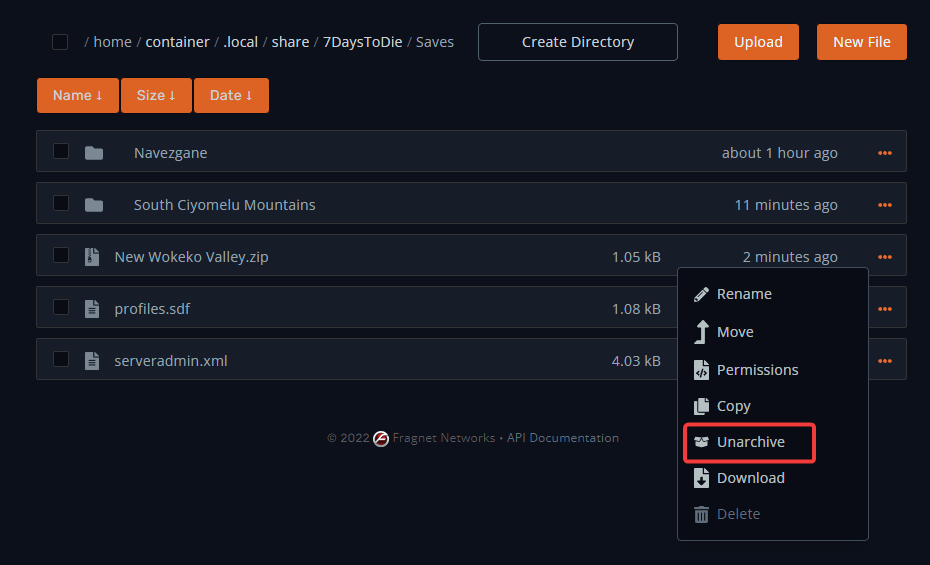 While world zip archive from GeneratedWorlds will have to be unarchived in
 .local/share/7DaysToDie/GeneratedWorlds.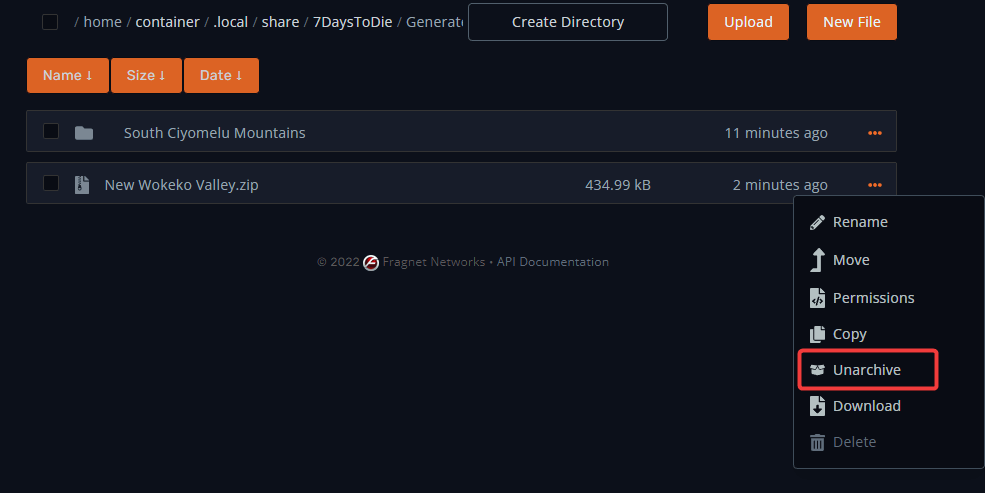
-
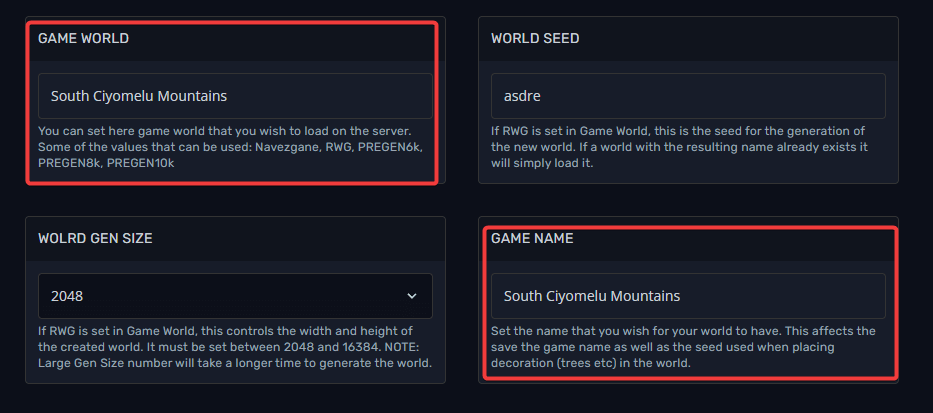
You will need to go to Configure on the left-side menu and look for the Game World and Game Name variables. Set them to the name of the world folders that you have uploaded.
-
Restart the server, and it is ready!