Mod load order and launch parameters on your DayZ server
The Fragnet dashboard builds your DayZ server's launch line for you. There's no custom command line to write:
- The
-modand-servermodparameters come from the mods on the Workshop tab, in their Load order. - Other startup options are startup settings on the Configuration tab.
Set the mod load order
Some mods need other mods, such as Community Framework (CF), to load first. If a mod loads before a mod it needs, the server may not start.
- Open the Fragnet dashboard, go to My servers and select your server.
- Select the Workshop tab, then Installed.
- Open the Load order card if it's folded. It has two lists:
- Client mods (
-mod): players download these when they join. - Server-side mods (
-servermod): only the server loads these.
- Client mods (
- Drag a mod up or down to change where it loads. Mods load top to bottom, so put a mod below the mods it needs. On a phone, use the arrows next to each mod.
- To move a mod to the other list, drag it there, or select it and turn Server-side only on or off.
- Restart the server. Changes save straight away but only apply on the next start.
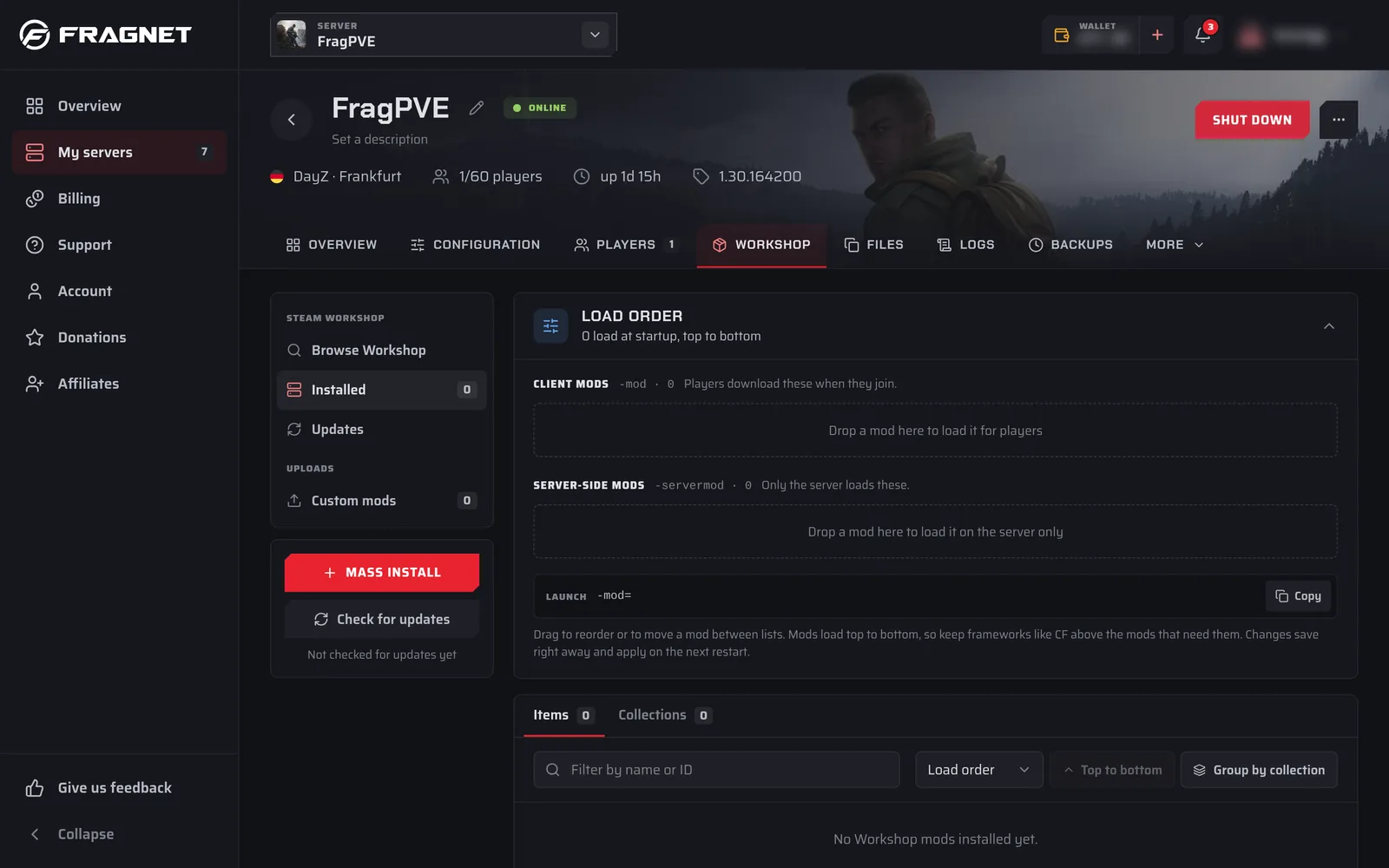
Disabled mods keep their place and show Off. Mods you uploaded yourself show Custom.
Until you change the order yourself, the dashboard places mods after the mods they need. After you've reordered by hand, check the order whenever you install a new mod.
Which mods does a mod need?
The mod's Steam Workshop page lists them under Required items:

Those mods must be above it in the load order. When you install a mod from the Workshop tab, its required items are installed with it.
See the launch line
Below the lists, Launch shows the mod parameters the server starts with, for example:
-mod=@CF;@VPPAdminTools -servermod=@MyServerMod
Each mod is its folder name on the server, separated by ;. Select Copy to copy the line, for example to add it to a support ticket.
Other launch parameters
Other startup options are startup settings:
- Open the Configuration tab and select General.
- Select the Startup group. It lists the startup settings your server offers, each with a short description.
- Change a value and select Save. It applies the next time the server starts.
Settings tagged Fixed or Set by your plan can't be changed there. See Startup.
Many server options are not launch parameters but settings in serverDZ.cfg, for example Verify mod signatures and Same game version only. See Changing basic settings.
You can't add your own launch parameters, such as -filePatching or -ignoremod. If you need one, open a support ticket.