How to add a header image and description to your Rust server
When players select your server in the Rust server browser, they see its header image and description. Use them to show what your server is about before anyone joins.
All of these settings are in the Server group of server.cfg on the Configuration tab:
| Setting | What it is |
|---|---|
| Header image | A link to a 512 × 256 PNG or JPG, shown above your description. |
| Description | The text players see when they open your server, up to 1,000 characters. |
| Website | The link on your server page in the browser, for example your Discord. |
| Logo image | A link to the logo shown in the server browser and the Rust+ app. |
Header image
Prepare the image
The image must be 512 × 256 pixels, in .png or .jpg format.
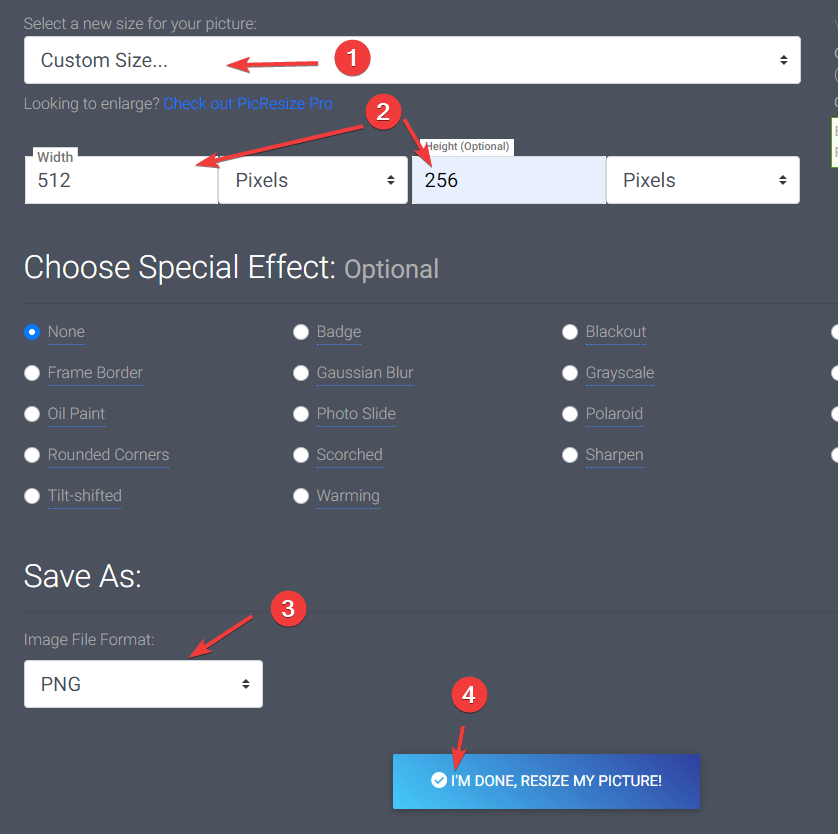
To resize an image, you can use an online tool such as Picresize. Upload the image, then under Resize your picture select Custom Size... and enter the size above. Make sure Image File Format is set to PNG or JPG, then select I'm done, resize my picture!.
Upload the image
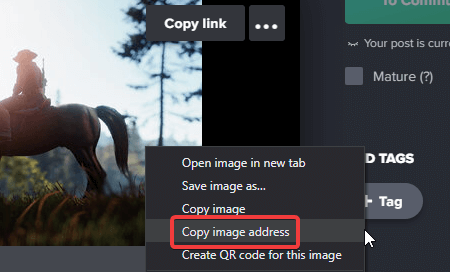
The image must be on a public image-hosting site. We recommend Imgur: upload the image with drag and drop, then right-click the image and select Copy image address. The link should end in .png or .jpg.
Add the image to your server
- Open the Fragnet dashboard, go to My servers and select your Rust server.
- Select the Configuration tab, then select
server.cfgin the list on the left. - In the Server group, paste the image link into Header image.
- Select Save and restart, or Save to apply it at the next restart. See Change a setting.
Your header image shows when players select your server in the Rust server browser.
Server description
The description is the text players see when they select your server in the server browser. Common uses:
- Rules players should know about
- Plugins that change the game, such as gather rates
- Contact details, such as your Discord
- Your wipe schedule
Add a description
- On the Configuration tab, select
server.cfg. - In the Server group, type your text into Description.
- Select Save and restart, or Save to apply it at the next restart.
New lines
To start a new line, write \n where the line should break. You don't need spaces around it. For example:
Welcome to our server!\nWipes every Thursday.\nDiscord: discord.gg/example
Header image and Description may be tagged Applied at start. Then the dashboard keeps them in your startup settings and writes them into server.cfg at every start, so change them on the Configuration tab rather than in the file. A scheduled wipe also sets the description at every wipe.