Team access
You can let other people help run your servers without sharing your password. Invite them to your account as team members and give each one a role. The role decides what they can see and change.
Team members replace the old per-server subusers. If someone used to be a subuser on one of your servers, invite them as a team member.
A team member's role applies to every server on your account. You can't give someone access to only one server, or choose permissions server by server.
Open your team
- Open the Fragnet dashboard.
- Open the menu under your name at the top right and select Team. You can also select Account in the sidebar, then the Team tab.
The Team members card lists everyone on the account with their role. If you're the Owner or an Admin, it also shows Pending invitations.
Invite a team member
Only the Owner and Admins can invite people.
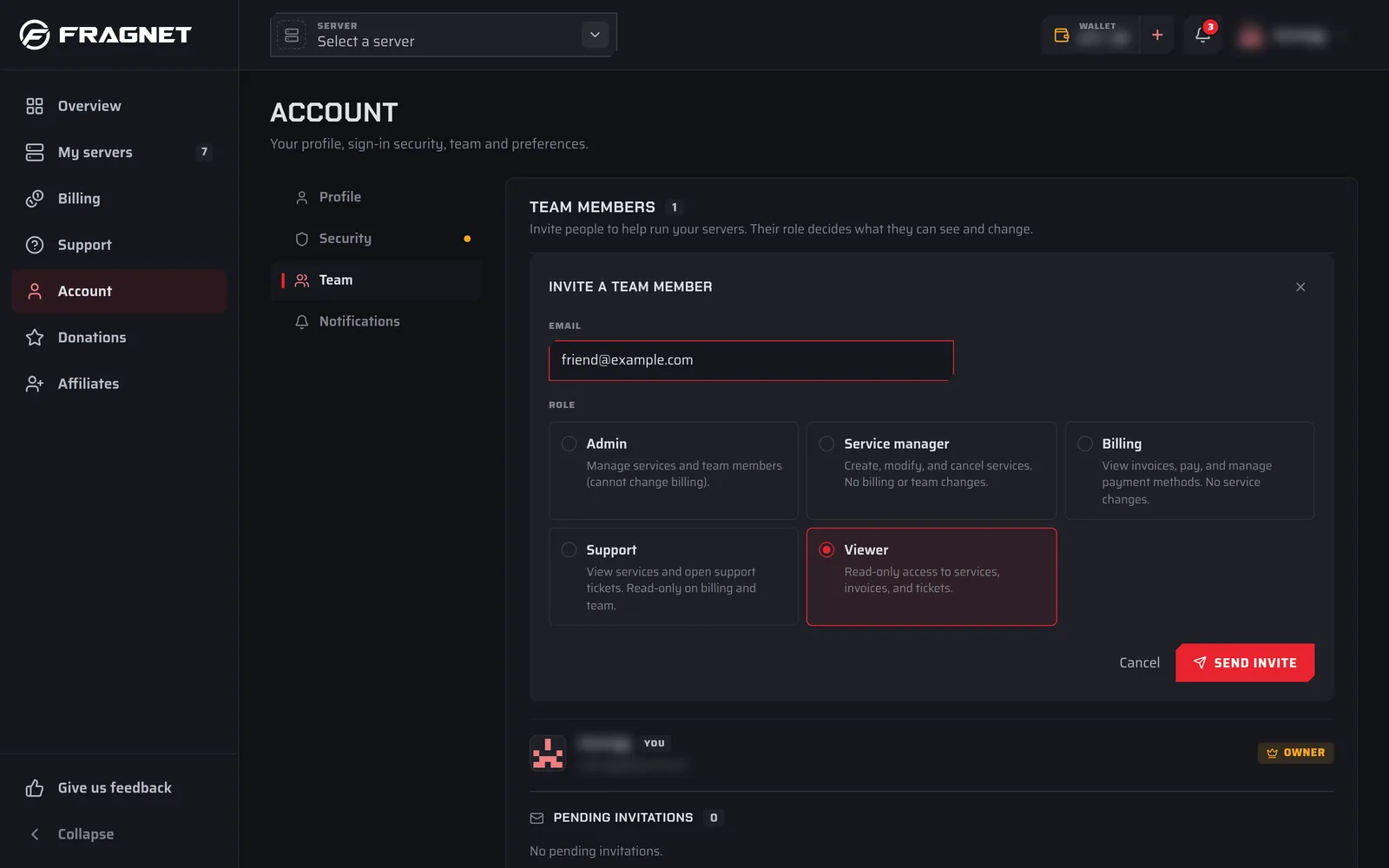
- In the Team members card, select Invite member.
- In Invite a team member, enter the person's Email.
- Under Role, pick a role. Viewer is selected to start with. Only the Owner can invite someone as an Admin.
- Select Send invite.
The person gets an email with an invitation link. The invitation is valid for 24 hours. Until they accept, it's listed under Pending invitations with its role and expiry time.
Accept an invitation
If someone invited you:
- Open the link in the invitation email. You see who invited you and with which role.
- If you aren't signed in, select Log in (or Create account if you don't have a Fragnet account yet) and use the email address the invitation was sent to.
- Select Accept invitation. The dashboard takes you into the account.
If you're signed in with a different email address, select Sign out and sign in with the invited one. If the invitation has expired, ask the account owner to send a new one.
Roles
The Owner is the person who owns the account. Every other member has one of the roles below. In the dashboard, each role comes with a short description, shown in the second column.
| Role | Dashboard description | Server tools | Billing tab | Manage the team |
|---|---|---|---|---|
| Owner | Full control over the account, billing and team. | |||
| Admin | Manage services and team members (cannot change billing). | |||
| Service manager | Create, modify, and cancel services. No billing or team changes. | |||
| Billing | View invoices, pay, and manage payment methods. No service changes. | |||
| Support | View services and open support tickets. Read-only on billing and team. | |||
| Viewer | Read-only access to services, invoices, and tickets. |
Server tools means everything that changes a server: power buttons, the console, the Configuration, Files and Backups tabs, schedules, the SFTP/FTP password and game tabs such as plugins, mods or the Workshop.
Every role can see the account's servers in My servers, open each server's Overview tab (address, location, plan and usage) and its Activity tab.
Manage the team works like this:
- The Owner can invite people with any role, change roles and remove members.
- Admins can invite people with any role except Admin, and remove members. They can't change roles.
- Any member can leave the team.
Change a member's role
Only the Owner can change roles.
- Open the Team members card.
- Select the role next to the member's name.
- Pick the new role from the list. You see "Role updated."
Remove a member or an invitation
- Remove a member: select Remove next to the member, or Remove from team in the role list (Owner). Confirm when the dashboard asks. Only the Owner and Admins can remove other members.
- Leave a team: if you're a member of someone else's account, select Leave team next to your own name.
- Cancel an invitation: under Pending invitations, select Revoke next to it.
Work on someone else's account
When you're a member of other accounts, you switch between them:
- Open the menu under your name and select Switch account, then pick the account. This only shows if you have access to more than one account.
- When you sign in, you may see Choose an account. Pick the one to use now.
While you're working in someone else's account, a banner at the top of every page says You're viewing @{owner}'s account as {role}., with the account's name and your role filled in. Select Switch to my account in the banner to go back to your own account.
Your password and two-factor authentication belong to you, not to the account you're viewing. Setting up two-factor authentication protects your sign-in for every account you have access to.