Crash alerts and activity
The dashboard records what happens on your server, including crashes, on the Activity tab. You can also get alerts by email or Discord when a schedule fails and, on DayZ servers, from Server monitoring.
There's no general crash alert by email or Discord for every game. To spot crashes, check the Activity tab. Alerts are only available where described below.
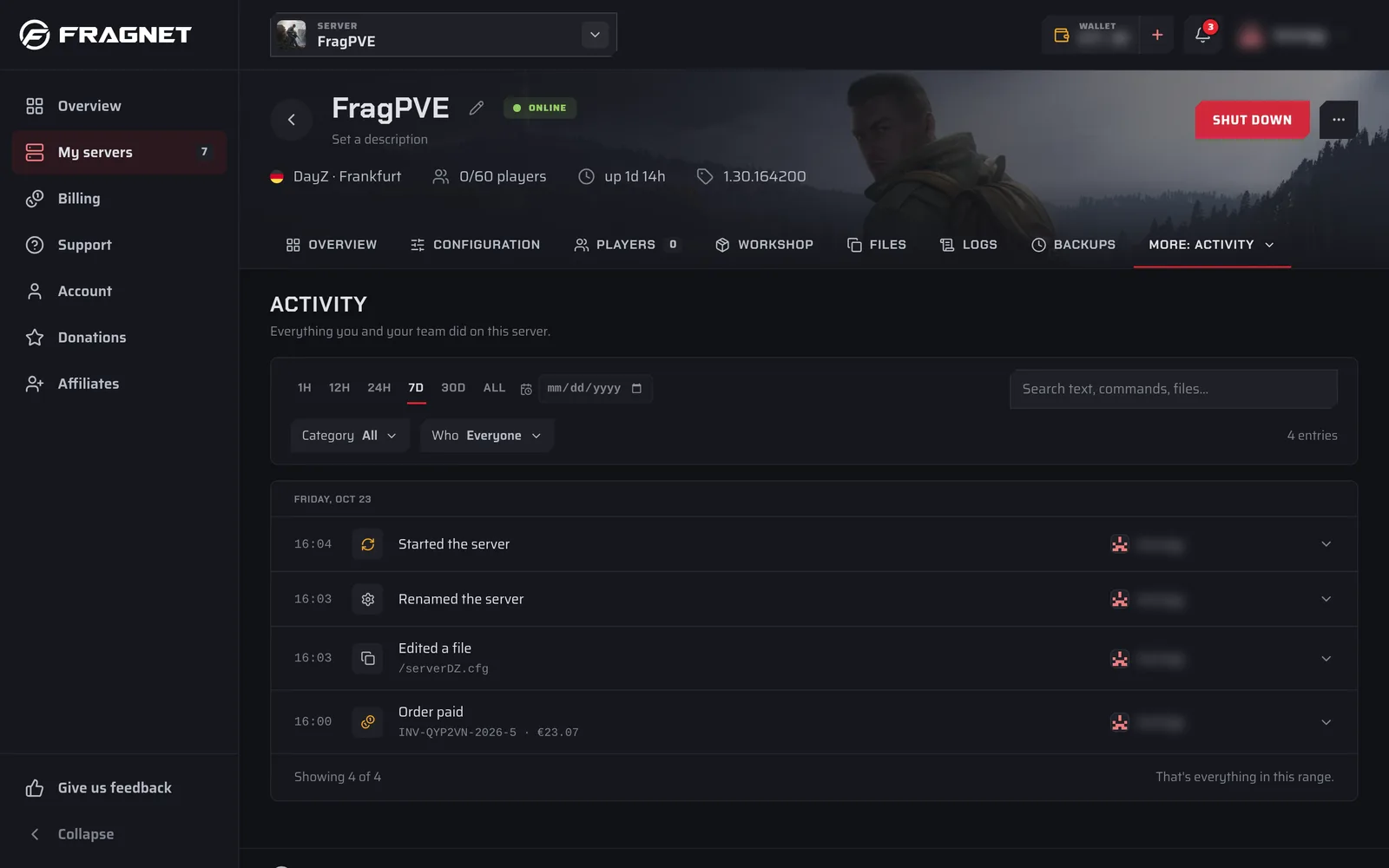
The Activity tab
- Open the Fragnet dashboard, go to My servers and select your server.
- Select the Activity tab. If you don't see it in the tab row, look under More.
The tab lists "Everything you and your team did on this server", newest first and grouped by day. Each entry shows what happened, who did it (a team member, Fragnet staff or System) and when. Select an entry to see its details, such as the command, file or setting involved, and where the action came from.
Every role on the account can see the Activity tab.
What it logs
- Crashes: shown as The server crashed.
- Power: the server was started, stopped or restarted, or its process was killed.
- Console: console commands that were run.
- Files: files opened, edited, uploaded, downloaded, renamed, copied, compressed, extracted or deleted, and folders created, including changes made over SFTP and FTP and changes to the SFTP/FTP password.
- Backups: backups started, finished, failed, restored, downloaded, renamed, protected or deleted.
- Schedules: schedules created, updated, deleted or run manually, and their tasks changed.
- Settings: the server renamed or its description changed, startup and game settings changed, subdomains added or removed, the server wiped or reinstalled, versions, modpacks and Workshop mods installed or changed.
- Billing (only if your role has billing access): payments, renewal invoices, plan changes, automatic renewal and cancellation requests.
Filter the list
- Time range: pick 1H, 12H, 24H, 7D, 30D or All. The list starts with the last 7 days. The date field next to it shows everything since a date you pick.
- Search: type in Search text, commands, files….
- Category: show only Power, Console, Files, Backups, Schedules, Settings or Billing.
- Who: Everyone or Account users.
Each filter you set shows as a chip you can remove. Clear all removes them all. Select Load 50 older at the bottom to see older entries.
Find out why your server crashed
- On the Activity tab, look for The server crashed and note the time.
- Select the entry to see the details that were recorded.
- Check the console on the Overview tab and your game's log files on the Files tab around that time. Many crashes are caused by a mod or plugin, or by running out of memory.
- If you can't find the cause, open a support ticket and mention the time of the crash.
Alerts when a schedule fails
On servers where it's offered, a schedule can alert you when a run fails. You turn this on in the Options step of the schedule editor:
- Email me when a run fails sends an email to your account email address.
- Post failures to Discord posts a message to a Discord channel. Paste the channel's webhook into Discord webhook URL. See Create a Discord webhook.
Once saved, the webhook shows as Connected. If Discord stops accepting it, you see "Not working — replace the webhook". Use Replace to paste a new one or Remove to stop the posts.
See Schedules for how to create and edit a schedule.
DayZ: Server monitoring alerts
DayZ servers on Windows have Server monitoring: the server is checked regularly, and restarted or stopped when it stops answering. Its alerts tell you by email and Discord when monitoring restarts, stops or gives up, and when the server crashes.
- Open the Configuration tab and select Server monitoring in the list on the left.
- Select Alerts.
- Enter up to three email addresses in Email 1, Email 2 and Email 3.
- To post alerts to Discord, paste a webhook into Discord webhook. See Create a Discord webhook.
- Select Save alerts.
- Select Send test alert to check that the alerts arrive.
The General section of Server monitoring holds the monitoring settings themselves (for example Monitoring on, Action and Max restarts per hour), and Query log shows what monitoring saw and did. Each alert email has a link to stop alerts to that address.
Create a Discord webhook
A webhook lets the dashboard post messages to a channel on your Discord server. You need permission to manage webhooks on that Discord server.
-
In Discord, right-click your server and select Server Settings > Integrations.

-
If you already have other webhooks, select View Webhooks. Otherwise, select Create Webhook.

-
Select Create Webhook again. Enter a name for the webhook and pick the text channel the alerts should go to. You can name it anything you want.

-
Select Save Changes and then Copy Webhook URL.
-
Paste the URL into the dashboard: into Discord webhook URL in a schedule's options, or into Discord webhook under DayZ Server monitoring > Alerts. Then save.
The URL starts with https://discord.com/api/webhooks/. Keep it private: anyone with the URL can post to your channel.