Getting started with your Arma 3 server
This page shows where to find your server's address and how players join it.
Find the address and port
- Open the Fragnet dashboard, go to My servers and select your server.
- On the Overview tab, look at the Server Details card. Address shows the IP address and the port, for example
203.0.113.10:2302. The number after the:is the port. - Select the copy button next to it to copy it.
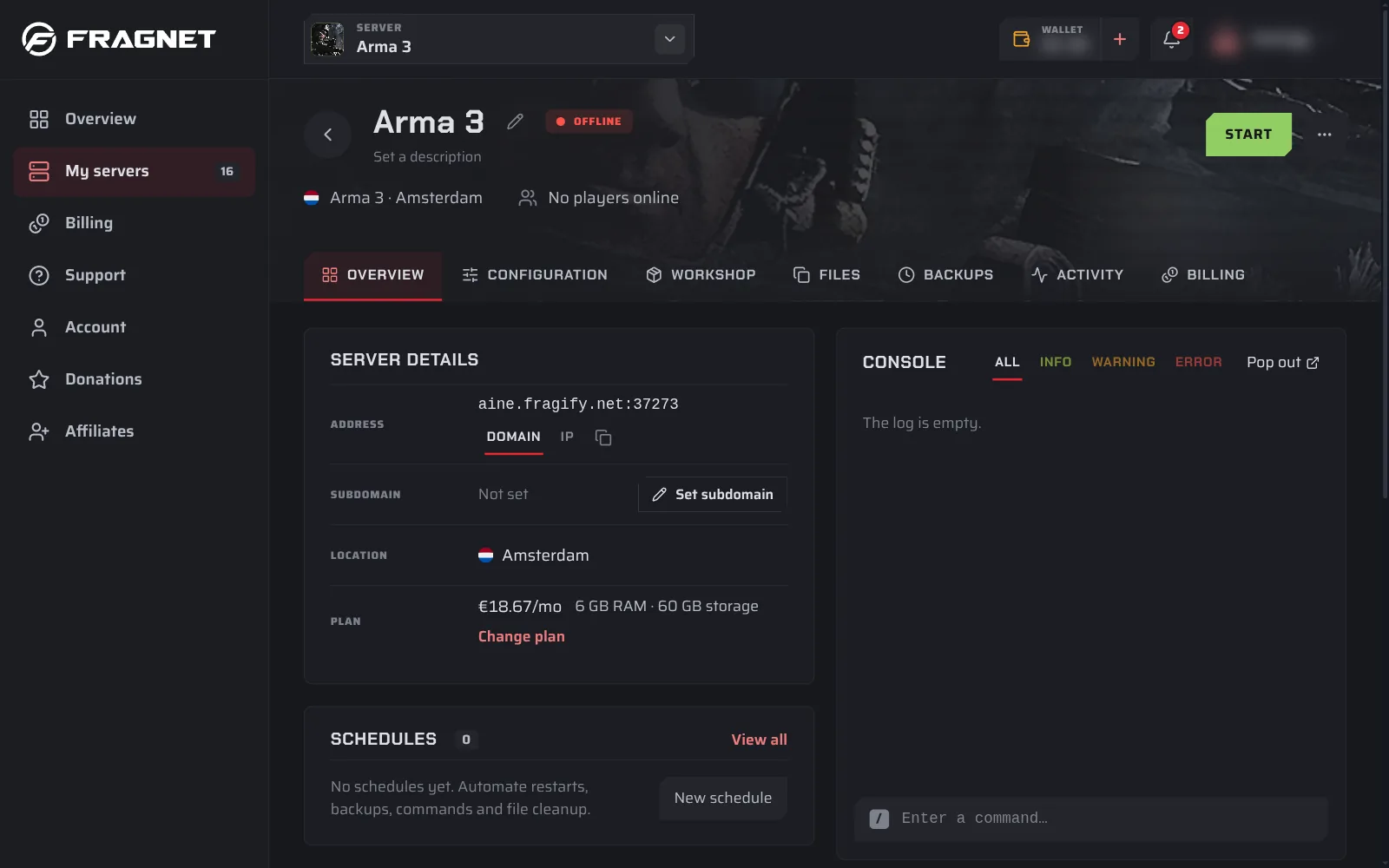
If the address shows a name instead of numbers, switch Address type to IP.
Join the server
From the Arma 3 Launcher
- Open the Arma 3 Launcher and select Servers.
- Select Direct Connect.
- Enter the IP address and the port from the dashboard, and join.
From the game
- Start Arma 3 and select Multiplayer, then Server Browser.
- Search for your server's name and join.
You set the name players see on the Configuration tab. See Change your server's settings.
Password
If your server has a join password, the game asks for it when a player joins. You set the password on the Configuration tab. Leave it empty for a public server.
Mods
Players need the same mods as the server, or they can't join. Mods that only the server loads (Server-side mods) are the exception: players don't need those.
The easiest way to give players the right mods is a Launcher preset. Export one in the Arma 3 Launcher (Mods, Preset, Export) with the server's mods, and send the .html file to your players. They import it in their own Launcher.
To install mods on the server, see Install Workshop mods.