How to Upload a Savegame to your Farming Simulator 2025 Server
This guide explains how to upload a single-player or local multiplayer savegame to your dedicated Farming Simulator 2025 server.
A savegame is stored in a folder named savegameX (for example savegame1, savegame2 etc.)
Each savegame folder contains files such as:
- careerSavegame.xml
- vehicles.xml
- placeables.xml
- farmland.xml
- items.xml
- economy.xml
Before You Start
-
Ensure all mods match
- It is recommended that server should have the same mods and versions as the local save to avoid hanging at 100% loading or being unable to start the server with the savegame due to the missing mod map or dependencies.
-
Decide which save slot to use
- Example:
savegame1corresponds to slot 1 on the server.
- Example:
Step 1: Locate Your Local Savegame
On Windows, savegames are stored in your Documents folder:
C:\Users\<YourUsername>\Documents\My Games\FarmingSimulator2025

To open this folder quickly:
- Press Win + R to open the Run dialog
- Type
%USERPROFILE%\Documents\My Games\FarmingSimulator2025and press Enter
Inside this folder, you'll find subfolders named savegame1, savegame2, etc. corresponding to each save slot.
Step 2: Prepare the savegame
Upload a ZIP File
Make a zip archive of the contents of the savegame folder, not a nested folder.
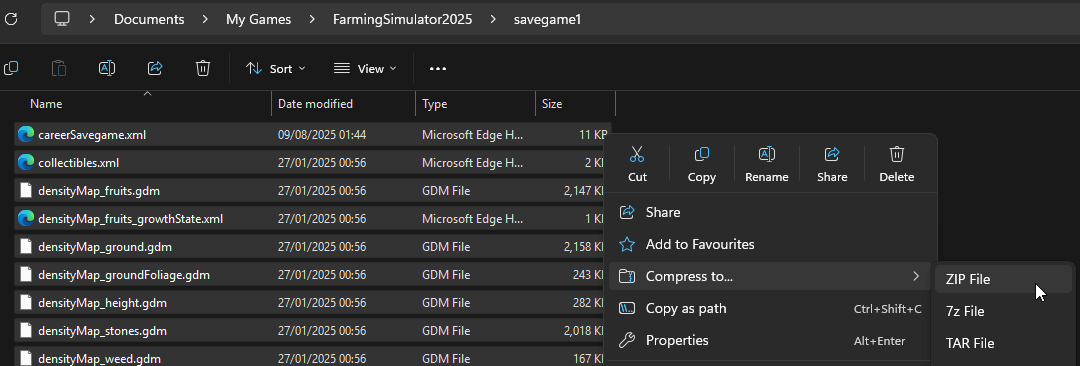
Correct:
savegame1.zip
├── careerSavegame.xml
├── vehicles.xml
└── ...
Incorrect:
savegame1.zip
└── savegame1
    ├── careerSavegame.xml
    └── ...
Step 3: Upload to the Server
Upload the savegame zip archive in FS25 control panel => Savegames tab => under Upload Savegame click on Choose file button => select the zip archive of savegame that was made in the previous step.
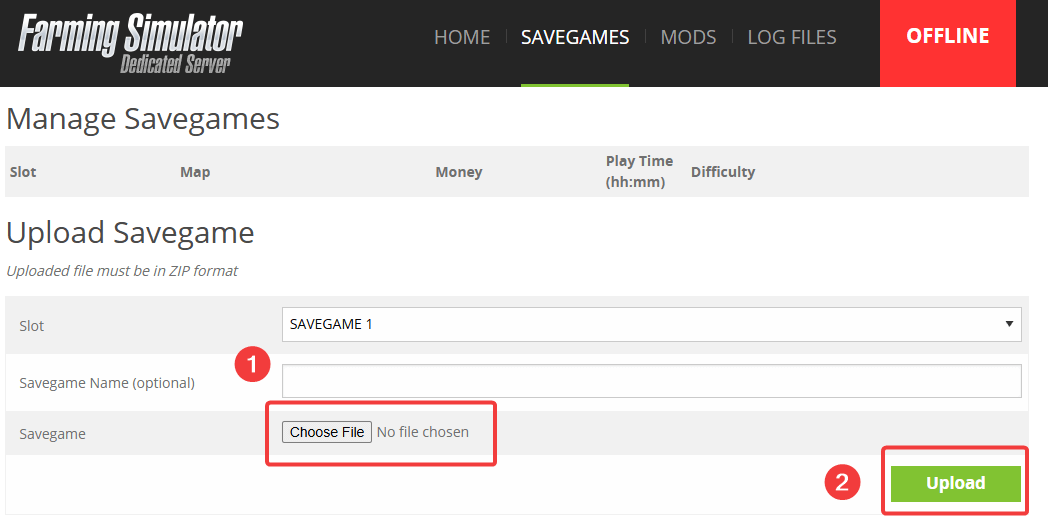
We recommend selecting an empty savegame slot.
Troubleshooting
Savegame does not appear after upload
Possible causes:
- Missing required files - The savegame archive must contain
careerSavegame.xml. Verify this file exists in your zip. - Nested folder structure - The zip contains a folder instead of files directly. Re-create the archive by selecting all files inside the savegame folder, not the folder itself.
Server cannot start with the uploaded savegame
Possible causes:
- Missing mod map - The savegame uses a custom map that isn't installed on the server. Upload the required map mod via the Mods tab in the FS25 control panel.
- Missing mod dependencies - Other mods used in the savegame are not installed. Check the server logs for missing mod errors and install them via the Mods tab.