Finding and connecting to your Project Zomboid server
You can connect to your Project Zomboid server through Steam's server list, or through the in-game server browser.
Find your server's address
- Open the Fragnet dashboard, go to My servers and select your Project Zomboid server.
- On the Overview tab, the Server Details card shows the Address. Select the copy button next to it.
The address has two parts, the host and the port, separated by a colon (host:port). See Server Details.
Via Steam
-
Open Steam and go to View > Game Servers.

-
Open the Favorites tab and select the + button to add a server.
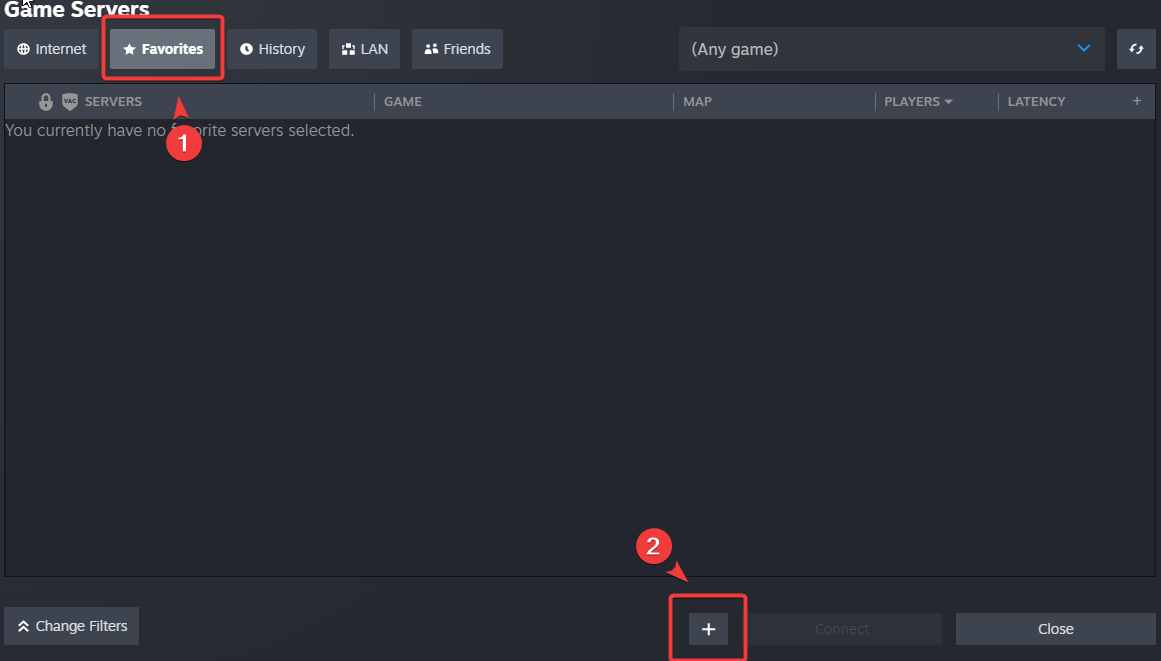
-
Enter your server's address (host and port) and select OK.
-
Your server appears in the list. Select it, then select Connect.
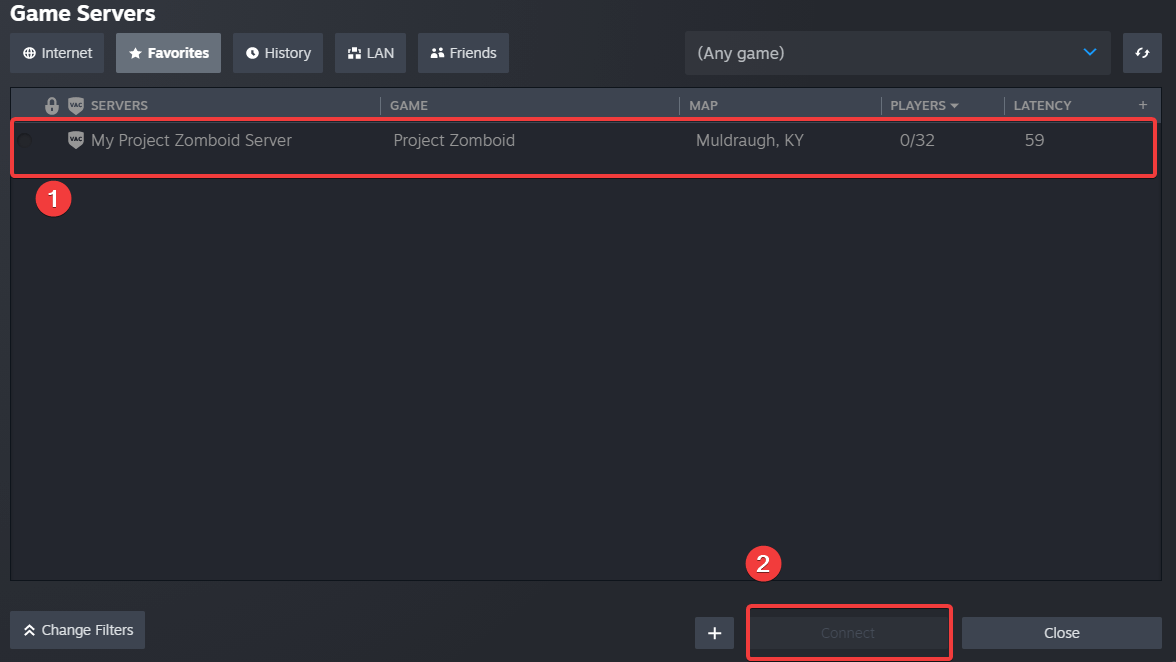
-
When the game has started, it asks for your login details. Enter the username and password you want to use on this server, then select Connect.
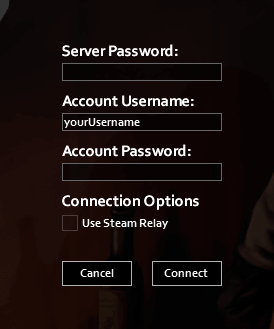
Via the in-game server browser
-
Launch the game and select Join in the main menu.
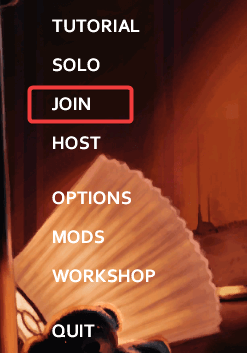
-
Open the Internet tab. In Name filter, enter your server's name and make sure all the filter boxes are ticked. The name is the Server Name startup setting, on the Configuration tab under General.
-
Select your server. Enter your Account Username and Account Password, then select Join Server.
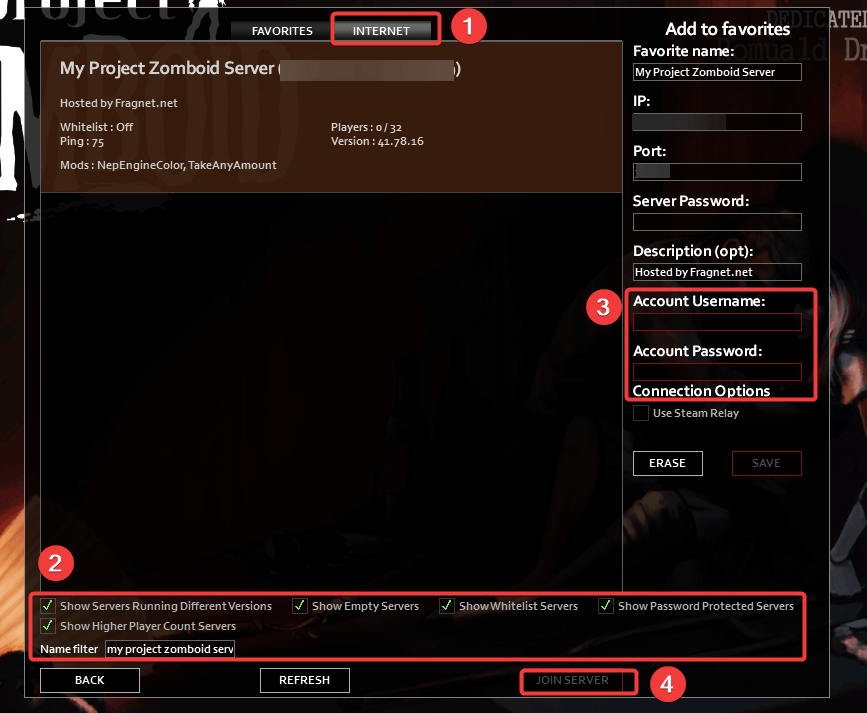
Check that the name you search for matches the Server Name startup setting, or add the server with its address on the right of the browser. Make sure you use the right host and port.