Schedule tasks
Tasks are what a schedule does. You add and change them in the Tasks step of the New schedule wizard (see Creating a schedule) or of the Edit schedule dialog (see Editing a schedule).
A schedule can have up to 10 tasks.
Adding and removing tasks
- Each task is a numbered card. Choose its type with the buttons at the top of the card.
- Select Add task to add a card at the end. The counter next to it shows how many tasks you have, for example "3/10 tasks".
- Select the × at the top right of a card to remove it. The last remaining task can't be removed.
- Tasks run in order from top to bottom. They can't be moved, so to change the order, change the type and fields of the existing cards.
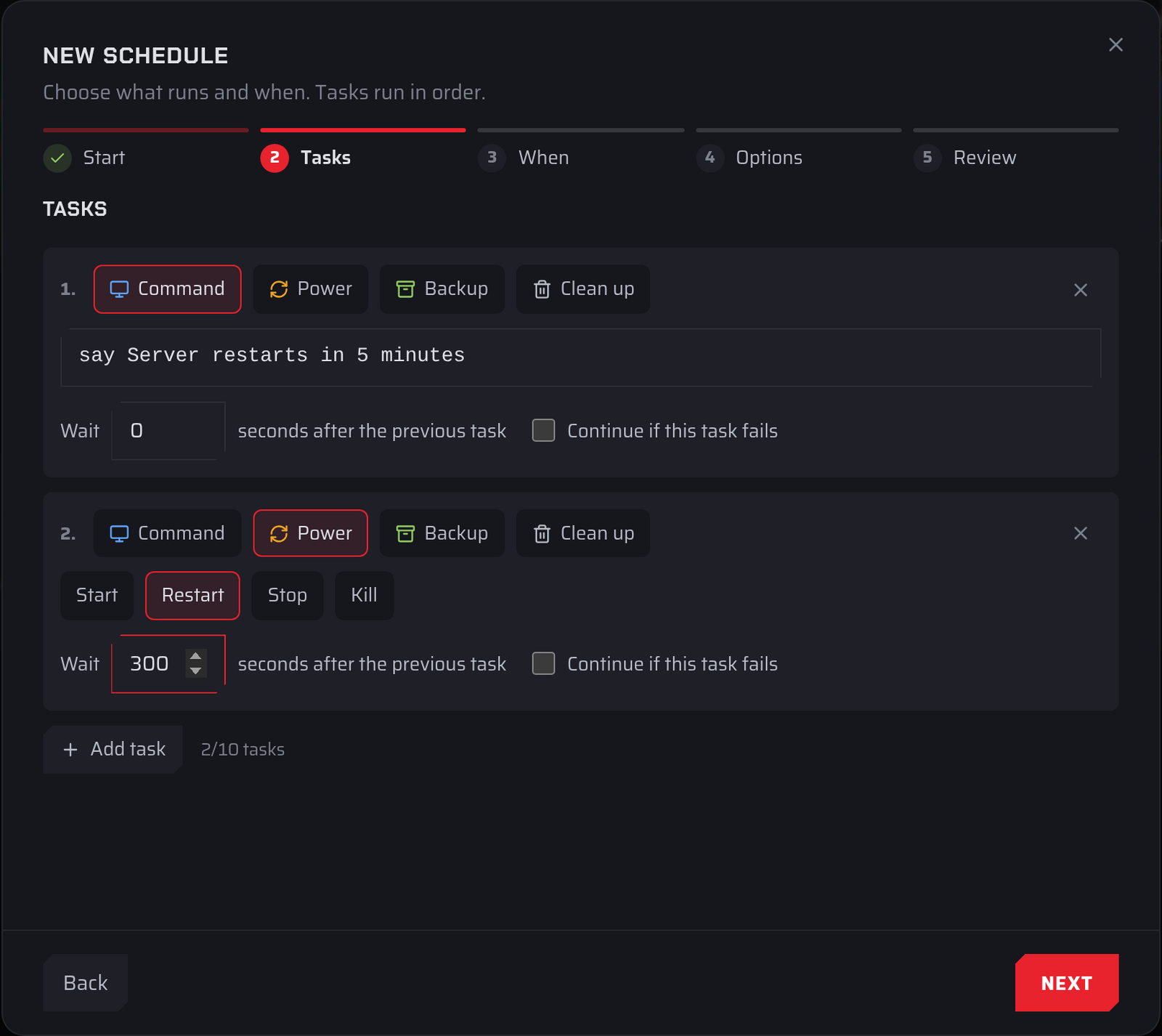
Task types
| Type | What it does | Available on |
|---|---|---|
| Command | Sends a console command to the server. | All servers except Farming Simulator |
| Message | Posts a message in the in-game chat. | Farming Simulator 22 and 25 |
| Power | Starts, restarts, stops or kills the server. | All servers |
| Backup | Makes a backup. | All servers |
| Clean up | Deletes old files whose names match a pattern. | All servers |
| Workshop | Installs Workshop mod updates. | Servers with Workshop mods, such as DayZ |
Command
Enter one console command on a single line, up to 1,000 characters, for example say Server restarts in 5 minutes. Which commands exist depends on your game.
The first task in a schedule has an extra rule: its command can't contain ;, &, |, `, $, backslashes or brackets. If you need one of those, put another task first.
Message
On Farming Simulator servers, Message takes the place of Command, because the game doesn't accept console commands. Enter one line of up to 200 characters, for example "Server restarts in 5 minutes, please save".
Messages reach the game through the Fragnet Livemap mod. If it isn't installed, the dashboard shows a warning with a link to Install it on the Map tab. Until it's installed, messages aren't sent, but the rest of the schedule still runs.
New Message tasks have Continue if this task fails turned on, so a restart that a message announces still happens if the message can't be sent. If an older schedule on a Farming Simulator server has a command task, it opens as a Message task and is saved as one.
Power
Choose one of:
- Start: starts the server if it's stopped.
- Restart: stops the server and starts it again.
- Stop: shuts the server down normally.
- Kill: ends the server process immediately without saving. Unsaved world changes are lost, so use Stop unless the server won't shut down.
A Start task never runs if the schedule has Only run while the server is online turned on.
Backup
Makes a backup of the server's files. It has no fields.
Each backup counts toward your plan's backup limit. When you're at the limit, a scheduled backup replaces the oldest backup that isn't protected. Protect any backup you want to keep. If the backup can't be made, the run shows "Backup limit reached" or "Too many backups in a short time".
Clean up
Deletes files that match a name pattern and are older than a number of days. It's useful for log files and temporary files that build up.
- Delete files older than … days: 1 to 365 days.
- File patterns: 1 to 20 file name patterns, separated by commas, for example
*.log, *.tmp. Use*for any characters and?for a single character. Patterns match file names only, so they can't contain slashes or spaces, and a pattern can't be wildcards only (*on its own isn't allowed).
After a run, the Last run column shows how many files were deleted and how much space was freed.
Deleted files are gone. Check your patterns carefully, and make a backup first if you're not sure what they match.
Workshop
Installs pending updates for Workshop mods that have auto-update turned on. Tick Restart after installing updates to restart the server once the updates are installed, so they take effect.
Options on every task
- Wait … seconds after the previous task: a delay from 0 to 900 seconds (15 minutes). Use it to give players time after a warning, or to let one step finish before the next.
- Continue if this task fails: when this is off and the task fails, the run stops there and the remaining tasks don't run. The Last run column then shows which task failed, for example "Task 2 failed". Turn it on if the rest of the schedule should run anyway.
Locked tasks
Older schedules can include a task type that the dashboard doesn't offer for your server. These tasks show with a lock icon. They keep running as before and are saved unchanged, but you can't edit or remove them in the dashboard. If you need to change one, open a support ticket.