Manage files via FTP
You can work with your FS22 server's files in two ways:
- the Files tab of your server in the Fragnet dashboard, right in your browser,
- an SFTP or FTP client such as Cyberduck, FileZilla or WinSCP, which is best for large files or many files at once.
Your mods, savegames and logs are in the serverProfile folder. Mods go in serverProfile/mods.
For mods and savegames, the Mods and Savegames tabs are usually easier: they check your files, show the result and can activate mods for you. Use files and SFTP for mods larger than 512 MB, many mods at once, or anything those tabs don't cover. See Installing mods and Upload your savegame.
Using the Files tab
- Open the Fragnet dashboard, go to My servers and select your server.
- Open the Files tab. It opens in the
serverProfilefolder. - Select a folder to open it, or Upload to upload files into the folder you're in.
The Files tab also shows how much of your Mod space is used. Uploads over 100 MB should go through SFTP or FTP rather than the browser. For everything the Files tab can do, see Files and SFTP.
Connecting with an SFTP or FTP client
Step 1: Get your login details
- On the Overview tab of your server, find the File access card. (The Files tab shows the same details in its FTP access card.)
- Select SFTP (recommended) or FTP. The port changes with your choice.
- Note the Host, Port and Username. Use the copy icons to copy them.
- Select Reveal to show the Password, or Copy password to copy it.
The SFTP/FTP password is a separate password for file access. It isn't your Fragnet account password or the FS22 control panel password. Only members with the Owner, Admin or Service manager role can see it. Regenerate sets a new one, and connections that use the old password stop working.
Step 2: Connect
This example uses Cyberduck.
- Download and install an SFTP client, such as Cyberduck, FileZilla or WinSCP.
- In Cyberduck, select Open Connection.

- Choose SFTP (SSH File Transfer Protocol), or FTP (File Transfer Protocol) if you picked FTP in the dashboard.
- Enter the Host as the server, then the Port, Username and Password from the dashboard. Don't add the port to the host name.
- Select Connect.
You can also select Open in SFTP client (or Open in FTP client) on the File access card to open your default client with the host, port and username filled in.
If you connect with plain FTP, your client may warn that the connection is unsecured. You can select Continue, or connect with SFTP instead.

Uploading and downloading files or folders
Once connected, you can upload files from your computer to the server and download files from the server, for example to keep your own copy of a savegame. To upload mods, open the serverProfile folder, right-click the mods folder and select Upload.... You can also drag and drop files.
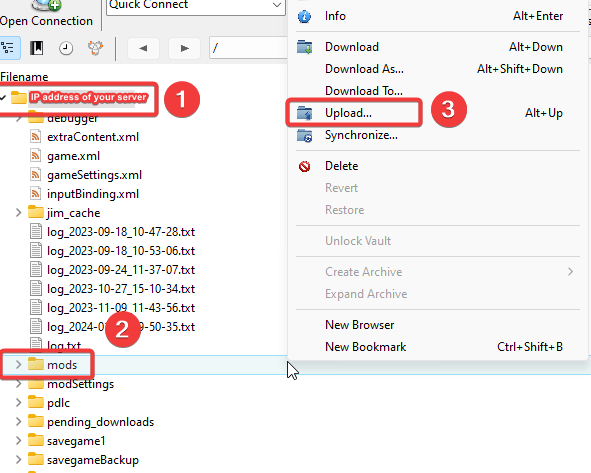
Mods you upload this way are installed inactive. Activate them on the Mods tab: see Installing mods.
Stop the game before you replace or delete mod files or savegame files over SFTP. Changing files the running game is using can corrupt your savegame.