Adding mods to your Don't Starve Together server
Installing mods on a Don't Starve Together server takes two files, which you edit on the Files tab of the dashboard:
dedicated_server_mods_setup.luain themodsfolder tells the server which Steam Workshop mods to download.modoverrides.luainDoNotStarveTogether/config/server/Master(andCaves) turns the mods on and holds their settings.
Stop the server before you start (see Power controls).
Find a mod's ID
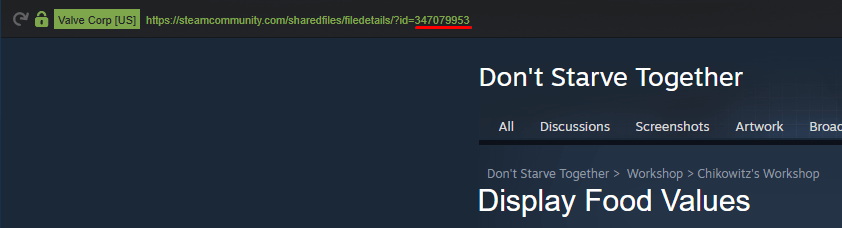
Open the mod's Steam Workshop page. The last part of the page's link is the mod ID:
Add individual mods
-
Open the Fragnet dashboard, go to My servers and select your Don't Starve Together server.
-
Select the Files tab, open the
modsfolder and selectdedicated_server_mods_setup.luato open it in the editor. -
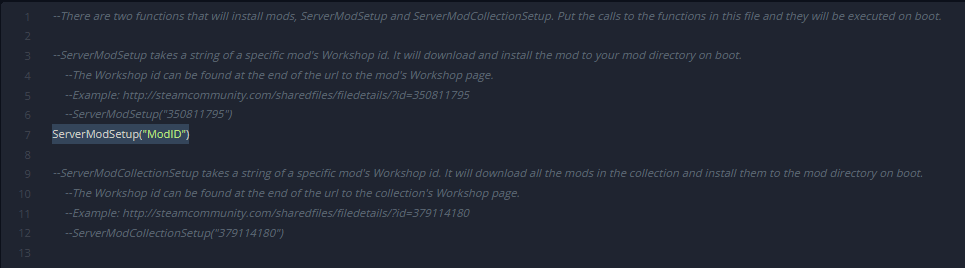
Add this line to the file:
ServerModSetup("ModID")It should look like this:
-
Replace
ModIDwith the mod's ID. Keep the quotes and the parentheses.
-
To add more mods, add another
ServerModSetup("ModID")line for each mod. -
Select Save file.
Next, turn the mods on with modoverrides.lua, as described in Enable the mods.
Add a Workshop collection
Adding a Steam Workshop collection works the same way. The only difference is the line you add to dedicated_server_mods_setup.lua. Instead of ServerModSetup("ModID"), use:
ServerModCollectionSetup("Workshop_Collection_ID")
Replace Workshop_Collection_ID with the ID from the collection's Workshop page. For example:

Enable the mods
-
On the Files tab, open the folder
DoNotStarveTogether/config/server/Master. -
If
modoverrides.luais already there, select it to open it. Otherwise select New file, entermodoverrides.luaas the name and select Create (see Create a file or folder). The new file opens in the editor. -
Paste this text. It enables two mods. Replace
modidwith each mod's ID, for exampleworkshop-347079953:return {
["workshop-modid"]={
  configuration_options={  },
  enabled=true
},
["workshop-modid"]={
configuration_options={ },
enabled=true
}
} -
To add more mods, add another block like this one inside the outer brackets, separated from the previous block by a comma:
["workshop-modid"]={
configuration_options={ },
enabled=true
}, -
Select Save file.
-
If your server has caves, create the same
modoverrides.luainDoNotStarveTogether/config/server/Cavestoo, so the mods are enabled there as well. Copy the text from theMasterfile and paste it into a new file inCaves. -
Start the server. The mods download and are enabled on the server.
Configure your mods
Some mods need to be configured. The easiest way is to let the game create the config for you on your own computer, then copy it to the server.
-
Subscribe to the mod on the Steam Workshop and start the game.
-
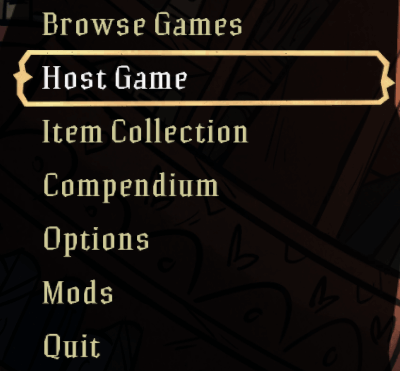
Select Host Game.
-
Go to the Mods tab and tick the mods you want.

-
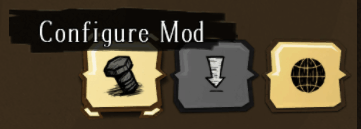
Select the mod you want to configure, then select Configure Mod.
-
When you're done, select Generate World. The game creates the config file
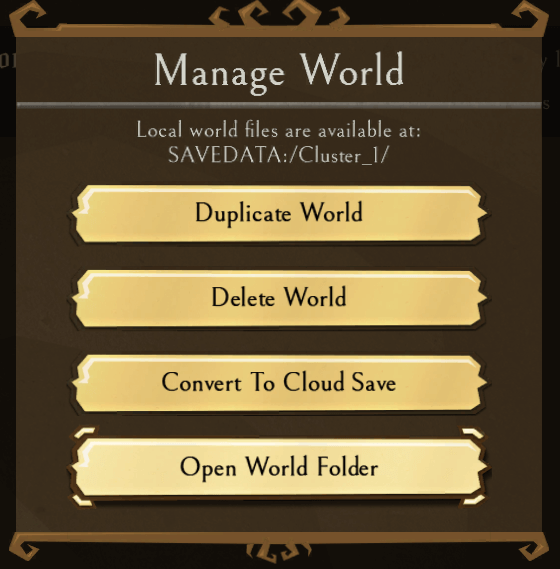
modoverrides.luainUsers\%useraccount%\Documents\Klei\DoNotStarveTogether\%randomnumber%\Cluster_1\Masteron your computer. To find the folder, you can also select Manage World: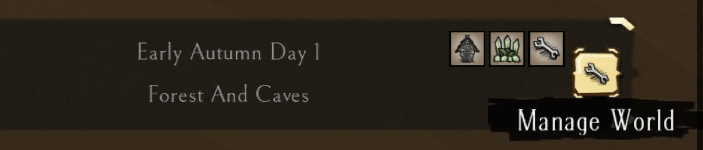
And then Open World Folder:
-
Copy the file to the server, into
DoNotStarveTogether/config/server/Master. Either:- Open the file on your computer in a text editor and copy everything. On the Files tab, open the server's
modoverrides.lua, replace its contents with what you copied and select Save file. Or: - Delete or rename the server's existing
modoverrides.lua, then open theMasterfolder on the Files tab and select Upload to upload your file (see Upload files).
- Open the file on your computer in a text editor and copy everything. On the Files tab, open the server's
-
If a mod changes the caves, do the same with the
modoverrides.luafrom theCavesfolder on your computer and the server'sDoNotStarveTogether/config/server/Cavesfolder. -
Start or restart the server. Your mods are now installed, enabled and configured.